

Krea 3 Image Editing: Features, Use Cases, and First Steps
Krea 3 is an AI image generation and editing model for turning written instructions and reference images into new visuals. Its most useful starting point is an existing image with a clear brief: change the setting, adjust a material, or create another shot while keeping the subject recognizable. You can use Krea 3 in the Whisk AI image workspace and keep your work alongside other image creation tools.
Krea announced the model on October 15, 2026. Its launch announcement reports native 2K editing with most edits completing in under eight seconds. Those are Krea's published claims, not a completion-time promise for your Whisk AI session or a benchmark performed for this article.
This guide helps you choose a useful first task. For a hands-on brief, read our Krea 3 product-photo editing guide.
What is Krea 3 useful for?
The Krea 3 model page describes both text-led creation and reference-guided work. That gives you two distinct starting points: invent an image from a description, or use a photograph to anchor what the subject should look like.
For a real product, the second route gives you a concrete source to check. For an imaginary setting, a written brief may be enough. Choose according to the material you already have and the detail you need to preserve.
| Your starting material | A useful first task | What to check before accepting it |
|---|---|---|
| A clean product photograph | Put the item into one new setting | Label, shape, material, orientation, and contact shadow |
| A character reference | Plan another scene featuring the same character | Face, clothing details, proportions, and distinctive features |
| An interior image | Request one specified material or furnishing change | Perspective, unchanged objects, scale, and lighting continuity |
| A sketch or written concept | Develop an art direction | Whether the result actually expresses the intended design |
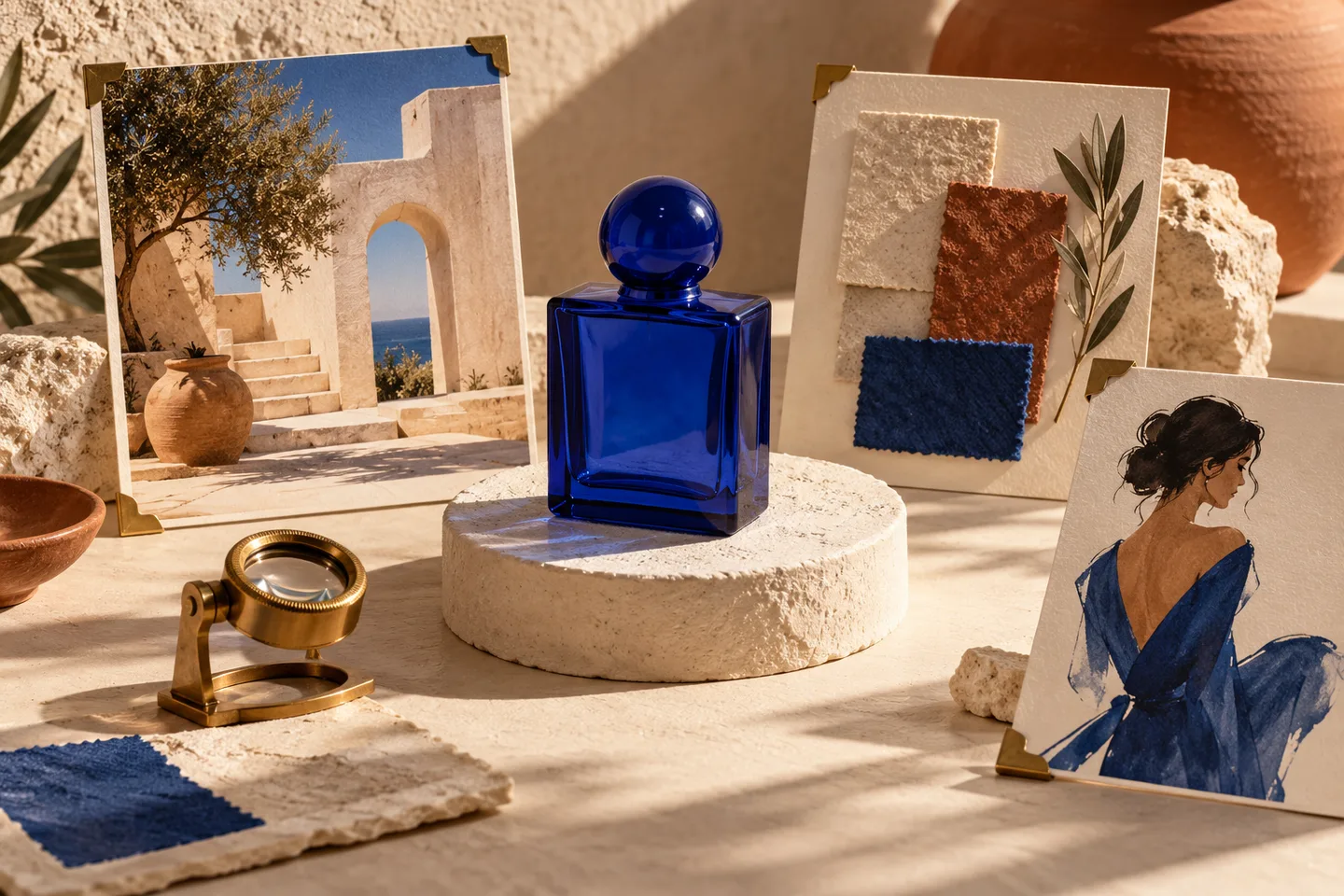
Original concept illustration of a reference-based editing brief. It is not a screenshot or a Krea 3 output demonstration.
Choose the edit before choosing the settings
A useful first brief has one main change and a visible acceptance condition. For a perfume campaign, that could be “move this bottle onto a pale stone shelf, with enough empty space for a headline.” The acceptance condition is whether the bottle remains accurate and the composition leaves the requested space.
Avoid making your first trial a complete campaign redesign. A request to change the angle, label, scene, lighting, and material at once makes an unsatisfactory result hard to diagnose. Start with the change that gives the image its purpose, then decide whether the next revision is necessary.
Here is an original starter brief:
Place the bottle from the uploaded photograph on a pale stone shelf beside a softly lit window. Leave the upper third quiet for a headline to be added later. Preserve the bottle's front-facing orientation, outline, cap, and label design.
Treat this as an instruction to test, not an example of a result already obtained. If the label changes, the image fails a product-accuracy requirement even when the scene looks attractive.
Start a Krea 3 task in Whisk AI
Open the image workspace with the source you intend to use. For an existing photo, start from Image-to-Image; for an invented scene without a source, start from Text-to-Image. The model choice and the input mode are separate decisions.
Write the edit in concrete visual terms. Specify the surface, lighting direction, framing, and the few identity details that matter. Review the settings and displayed credit estimate for the selected model before submitting. Keep the first request small enough that you can inspect every output.
This article does not assign a fixed reference count, resolution menu, batch size, or credit charge to Whisk AI's Krea 3 workflow. Check the controls shown for your selected model and account. Our workspace modes and settings guide explains the general interface.
A faster generation is useful only when the result survives review
Think about the whole job: preparing the source, requesting the edit, reviewing details, making corrections, and exporting an accepted file. A short generation time helps iteration, but repeated corrections can still dominate the work.
Use a compact review sheet for the first few attempts:
| Review question | Accept when | Revise or reject when |
|---|---|---|
| Did the intended change happen? | The requested setting or detail is clearly present | The output mainly adds unrelated decoration |
| Did the subject stay accurate? | Important identity details match the source | Text, construction, face, or proportions drift |
| Does the image work at its delivery size? | The subject and message remain legible | The crop cuts off the product or leaves no usable copy space |
| Is another edit worth the cost? | You can name one fix that would make it usable | The image needs a broad reconstruction |
Keep this sheet tied to the actual deliverable. A loose concept can tolerate more reinterpretation than a store listing showing the exact item a customer will receive.
When to use a different finishing method
If the product itself must remain exact, retain its original photograph and build the background around that source in a compositing workflow. Whisk AI's background remover can help prepare a cutout; inspect transparent areas, reflective edges, and fine details before placing it into another scene.
If the composition is approved but the file needs enlarging, use the image upscaler as a separate finishing step. Enlarging a file cannot correct a misspelled label or establish that an invented product feature is accurate.
For character work, compare the outputs as a set. A face that looks convincing in isolation may drift when placed beside the other campaign images. Our character and product consistency guide provides a broader reference-planning method.
What should you try first?
Choose one image you know well and one change you can judge. Preserve the source, write down the selected settings and charge, then compare the result at full size before making another request. Keep the successful brief and the acceptance checks together so you can reuse the method on the next asset.
Start a Krea 3 image brief in Whisk AI. If you already have a product packshot, continue with the focused product-photo tutorial.
Published by Whisk AI. Sources checked October 25, 2026. This is a sourced model overview with an editorial workflow, not an independent performance test.