

Whisk AI Explained: Tools, Three Image Modes, and Settings
Whisk AI at whisk-ai.io is a browser workspace for generating and editing images, combining visual references, and creating videos. It also has separate tools for background removal, image upscaling, image-to-prompt analysis, and watermark cleanup. The right starting point depends on whether you have a written idea, an existing image, or separate subject, scene, and style references.
For image creation, open the Whisk AI image workspace. Choose the model in Select Model, then choose Text-to-Image, Image-to-Image, or Whisk under Generation Mode. A model selects the image engine; a mode selects how you give that engine your brief. They are separate choices.
Published by the Whisk AI team. Product pages and the corresponding interface implementation were checked on October 24, 2026. This is a product orientation guide, not a claim that every tool or model was benchmarked. Available settings and charges can depend on the model and account.
What can you do on whisk-ai.io?
Choose a tool by the result you need, rather than opening the generator for every image task.
| Task | Where to start | What you get | Boundary to understand |
|---|---|---|---|
| Create a picture from a written brief | Image workspace: Text-to-Image | A generated image based on your description | No source photograph establishes the identity or exact construction of a real product |
| Edit or reinterpret an existing image | Image workspace: Image-to-Image | A new output guided by the source image and your instructions | Requested preservation still needs visual review |
| Combine subject, setting, and visual treatment | Image workspace: Whisk | An image guided by separate visual references and an editable prompt | References guide a reconstruction; they do not guarantee an exact composite |
| Remove an image background | Background Remover | A foreground cutout with transparency | Inspect fine edges, reflective surfaces, and transparent objects |
| Enlarge a selected image | Image Upscaler | A larger image using the available output options | Extra pixels cannot establish whether a generated detail is factually correct |
| Describe an image in words | Image to Prompt | An editable description of the visible image | It is an interpretation, not recovery of the original hidden prompt |
| Clean an unwanted overlay on an authorized image | Watermark Remover | A reconstructed area where the overlay was removed | Hidden content is estimated, not recovered exactly |
| Generate a moving clip | Video Generator | A model-generated video from the supported inputs | Model-specific clip controls do not replace a full editing timeline |
How to choose the three image modes
Use the materials you already have to make the first decision. You do not need to try all three modes for every brief.
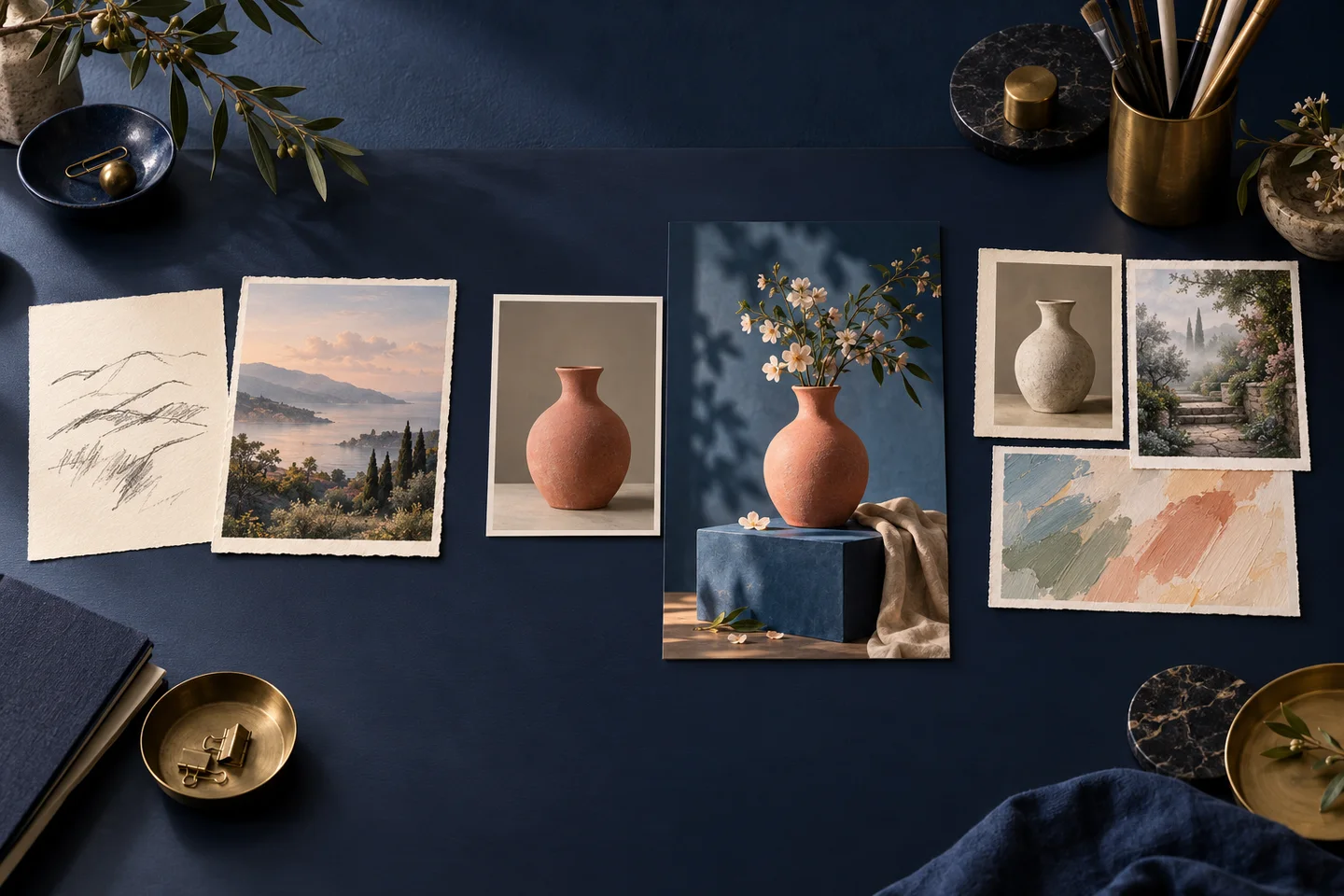
An original concept illustration of three ways to prepare a brief. These are not screenshots or outputs from a mode comparison.
Text-to-Image: start with a written idea
Choose Text-to-Image when you are inventing a scene or illustration and do not need to preserve a specific photographed object. Describe the subject, environment, composition, and light. If the image will carry a headline later, describe where the subject should sit and where the background should remain quiet.
For example, a café planning a seasonal announcement could request a still life of a generic ceramic cup, warm window light, and open space above the cup. That can establish an art direction. It cannot prove the cup matches an actual item in the café's store.
A useful brief is specific about what the picture must do. “A calm tabletop image with room for an announcement” gives you something to judge. “Make it professional” gives much less guidance about the actual composition.
Image-to-Image: begin with a source and an edit
Choose Image-to-Image when an existing picture anchors the task. Upload the relevant reference and explain both the desired change and the features that should remain: for example, move an object into a pale studio setting while preserving its orientation and visible construction.
Keep the original source available for comparison. If a result is attractive but changes the object, decide whether it is still useful as a concept or needs to be rejected. Do not approve it solely because the setting is convincing.
Our three-scene product-photo test illustrates that distinction: one lifestyle output reversed the sneakers' orientation despite a preservation request. The guide includes the actual settings and results. It is evidence about that small run, not a guarantee about every model or image.
Whisk: express the brief through separate references
Choose Whisk when you want to describe different parts of an idea visually. The mode provides three reference slots:
- Subject: the main person, object, character, or other focal point.
- Scene: the environment, setting, or spatial context.
- Style: the visual treatment, such as a photographic mood or illustration approach.
You can use the relevant slots rather than treating three images as a mandatory checklist. The interface analyzes uploaded references into descriptions and assembles an editable prompt. Read that prompt before generating: an image interpretation may omit a feature you care about or describe a material incorrectly.
If the brief needs one exact product against a different background, Image-to-Image may be the simpler starting point. If it needs a subject, a particular room, and a visual treatment from different references, Whisk makes those ingredients easier to organize. Neither route removes the need to inspect identity and detail.
Where to find the current model and output settings
The image workspace places Select Model above Generation Mode. Open that selector to see the current choices rather than assuming a model from an old article or from the word “Whisk.” The image selector includes model families such as Nano Banana and GPT Image; record the specific version label you select when you want to reproduce a result.
Below the prompt area, look for Output Aspect Ratio, Output Resolution when available, and Images per batch. The interface currently provides batch choices from one to four images, but output settings vary by model. Some models do not show a resolution selector; changing models can change which ratios or resolutions are available.
| Setting | What it controls | What to verify |
|---|---|---|
| Select Model | The engine used for the image job | The exact selected version, not just the product name |
| Generation Mode | How you supply the creative brief | Text, source-image editing, or separate visual references |
| Output Aspect Ratio | Intended image shape | Available choices and the downloaded file's actual crop |
| Output Resolution | Available output size tier | Whether the selected model exposes it and what dimensions are returned |
| Images per batch | Number requested in the submission | The displayed charge for that quantity and those settings |
Start with one image, inspect the result, then increase quantity if the approach is useful. Higher resolution does not fix a wrong label or a changed shape. Before generating again, check the current settings and charge instead of assuming they remained unchanged after switching models.
The prompt area also provides controls for deriving a description from an image and optimizing a prompt. Treat the proposed wording as a draft. Remove invented details and check that editing did not weaken the features you wanted preserved.
The supporting image tools
These pages handle distinct tasks. They are useful when you already have an image worth keeping and need a particular processing step.
Background Remover accepts an uploaded image and produces a transparent cutout. Use it when separating an existing foreground is more appropriate than asking a generator to redraw the whole picture. Review thin edges, gaps, and transparency before compositing.
Image Upscaler enlarges images. The page presents 2K, 4K, and 8K options with account-dependent access. Choose from the settings available to your account, then inspect the enlarged result. Reconstructed texture should not be mistaken for proof of the original object's fine detail.
Image to Prompt produces an editable text description from an uploaded image. Its page provides detail-level and prompt-language choices. Use it to turn a visual brief into words, then correct the interpretation before using it in the image workspace. Do not assume a description can recover the exact prompt that originally produced an image.
Watermark Remover cleans overlays on images you own or are allowed to edit. It reconstructs covered regions from surrounding context. Check repaired lettering, faces, lines, and repeated textures; the reconstruction is an estimate of what could fit there.
The availability of a page is not a promise of unlimited free processing. Sign in when prompted and check the relevant action's current access conditions and charge.
Where video fits
Open the Video Generator for a moving clip. It has its own model selector and prompt area, with reference inputs and output controls determined by the selected model. Check that model's available duration, resolution, aspect ratio, and quantity before submitting.
If you are animating an image, first settle the still composition and check the subject. Movement is an additional review task: inspect unwanted camera motion, object deformation, and continuity. For a sequence with multiple shots, narration, captions, or a soundtrack, plan the assembly and finishing separately. A generated clip is one asset in that process.
A practical first session
Suppose you need a lifestyle image for a product announcement and already have a usable reference photograph. Start in Image-to-Image, select a model, upload the source, and describe one scene. State the visible product details you need to preserve, then choose a suitable ratio and one image per batch. Check the displayed charge before submitting.
Inspect the returned file against the source. If the product changed, revise the instruction or use a cutout workflow. If the image passes review but needs a larger export, evaluate the upscaler. Add the final announcement text as editable typography in your layout process. If you later need a clip, take the accepted composition to the video generator and review motion separately.
This order keeps each decision tied to a deliverable. You can start in the image workspace, choose the mode that matches your inputs, and use the supporting tools only where they solve a remaining problem. For costs and policies, check the selected action and the site's current terms, privacy information, and refund conditions.