

Whisk AI Product Photos: A Three-Scene Test and Workflow
Whisk AI can turn a product reference into new scene ideas for social posts, campaign visuals, and website banners. Start in the Whisk AI image workspace, keep the original product image as your reference, and describe the setting and composition you need. Choose Image-to-Image for an edit of an existing photo, or Whisk when separate subject, scene, and style references help explain the brief.
We tested three scene briefs around one pair of white sneakers: a clean studio composition, an everyday lifestyle scene, and a landscape image with room for advertising copy. Four submissions produced three images and one refunded timeout. We retained the studio and banner compositions as creative directions; the lifestyle result changed the shoes' orientation and did not meet that part of the brief.
Tested on whisk-ai.io on October 23, 2026, by Whisk AI. All four submissions used Nano Banana 2.1, Image-to-Image, the 1K preset, one image per batch, and the same original reference. This is a small editorial workflow test using an existing demonstration asset, not an independent benchmark or a test of a newly photographed physical product.
Decide what the product image needs to do
A campaign image can explore an atmosphere. A product listing needs to represent the item a customer will receive. Decide which job you are doing before choosing a scene.
| Deliverable | Creative direction | Details that still need approval |
|---|---|---|
| Studio-style social image | A simple surface, clear product, restrained background | Product shape, color, seams, components, and count |
| Lifestyle image | A believable location that suggests how the product fits into daily life | Product accuracy, scale, contact shadows, and distracting props |
| Website or advertising background | A composition with space for editable copy | Product accuracy, usable empty space, and the actual desktop or mobile crop |
Use your approved product photograph as the master when exact packaging, fine lettering, or a particular component must remain unchanged. A request to “preserve the product” guides generation; it does not lock the original pixels. When exact preservation is essential, retain the original product cutout and assemble it with a suitable background in an editor that supports compositing.
Prepare one reference and a short acceptance brief
For the sneaker example, the reference shows the complete pair, the laces, the side-panel seams, the sole profile, and the direction each shoe faces.

Existing Whisk AI demonstration asset used as the unchanged input for every test submission. We did not establish that it is a photograph of a physical commercial product.
For your own product, use a sharp image with the entire item visible. Avoid a crop that hides a handle, cap, heel, or other detail you expect the model to preserve. If you add another reference, give it a specific purpose, such as showing a back panel that the first image cannot explain.
Write two short lists:
- Keep: the same pair of shoes, low-top silhouette, white material, cream laces, seam layout, sole thickness, and relative positions.
- Change: the supporting surface, surrounding environment, light direction, and space around the product.
If your item includes a logo or label, add the exact features you need to check. A successful example involving unbranded shoes would not establish that a model can preserve a bottle's small label text.
Choose the mode before building the scene
Open the image workspace, sign in to submit a job, and check the selected model and its available output settings.
Use Image-to-Image when a source photo is already close to the intended result. Upload it and state the requested edit. For these three briefs, it is the most direct starting point because the product is already defined.
Use Whisk when your materials explain different parts of the image: put the product in Subject, the environment in Scene, and the desired aesthetic in Style. Review the automatically generated AI Prompt and edit it when needed. The slots are optional; add references only when they clarify the task.
Keep the same model for the first round of scene comparisons. Changing the model, source, style, and prompt together makes it harder to understand what caused a difference.
Plan three scenes from the same reference
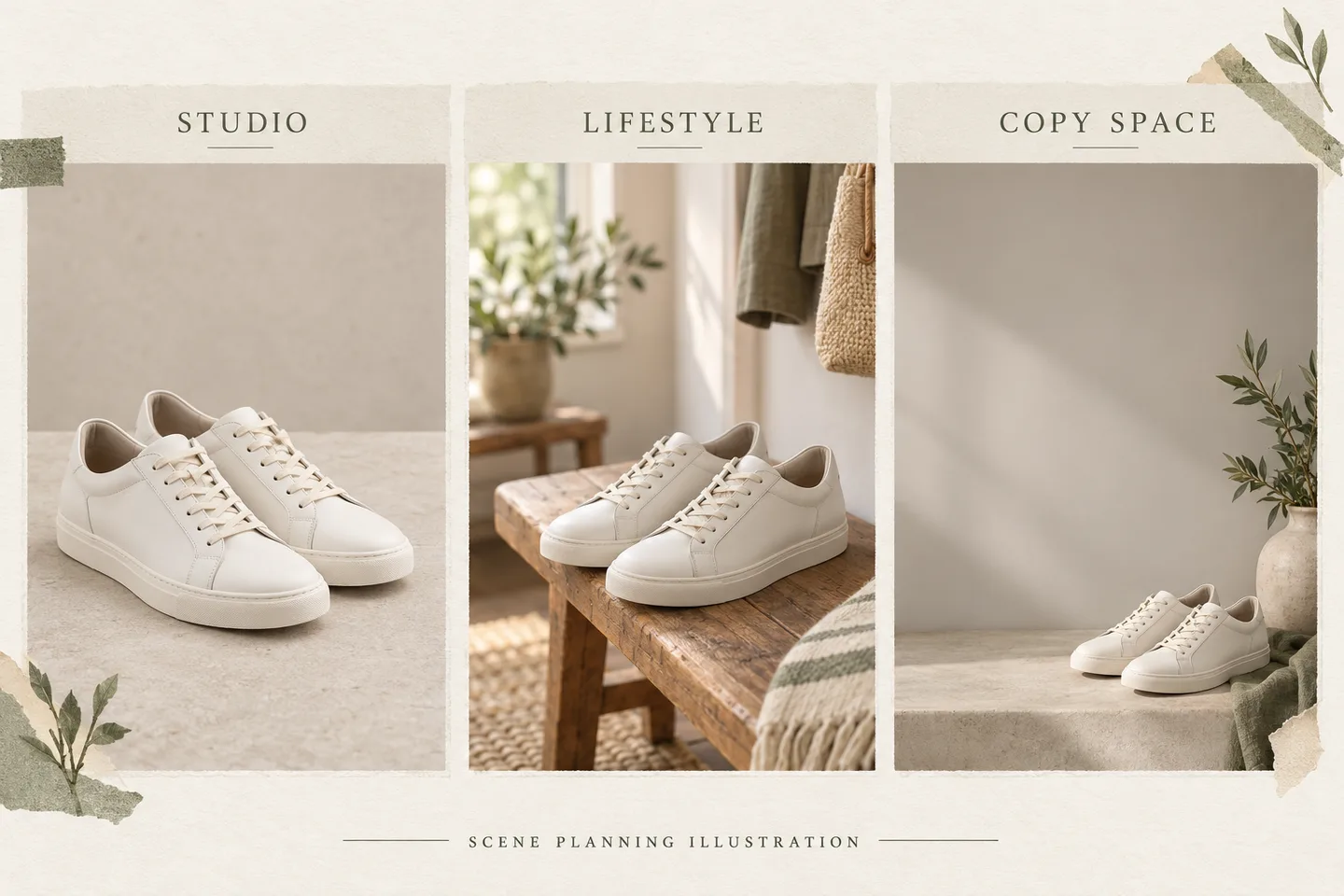
AI-generated scene-planning illustration. These panels are concept references, not Whisk AI test outputs, screenshots, or a product-preservation comparison.
Scene 1: A clean studio composition
Begin with a simple scene so you can inspect the product without visual distractions. A square composition is a useful first brief for a social image. Select the ratio in the output control rather than relying only on the prompt.
Use the uploaded pair of white low-top sneakers as the product reference. Keep the same two shoes, their orientation, white material, cream laces, side-panel seam layout, and low rubber soles. Replace the wooden table and room with a pale matte stone surface and a warm off-white studio background. Keep both shoes completely inside the frame. Use soft light from the upper left and a natural contact shadow beneath each sole. No extra shoes, props, logos, or text.
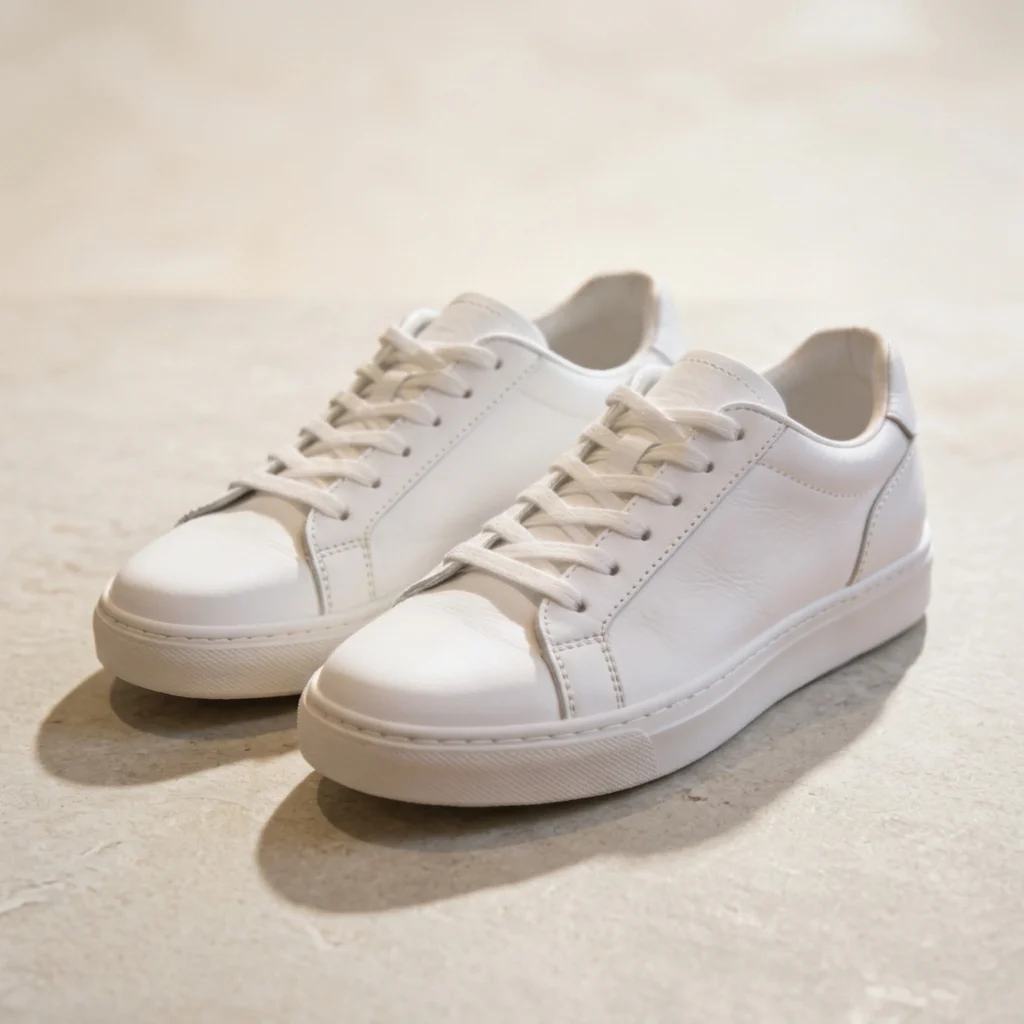
Actual test output: Nano Banana 2.1, Image-to-Image, 1K, 1:1, one candidate. The completed task consumed 3 credits.
In this result, both shoes remain fully inside the frame, the wood-and-room setting becomes pale stone, and visible shadows ground the soles. We retained it as a studio-style creative direction. That visual selection does not certify every seam, lace segment, or product dimension as identical to the source.
Check the product before judging the atmosphere. Compare the toe shape, shoe openings, lace arrangement, seams, and sole height with the reference. A beautiful scene does not compensate for a redesigned shoe.
If the shoes appear to float, keep the scene and try one focused revision:
Keep the product and composition. Make the soles rest directly on the stone surface, with a narrow contact shadow immediately underneath. Remove the visible gap between the shoes and the surface.
Scene 2: An everyday lifestyle setting
Use a place that makes sense for the item. An entryway bench gives sneakers a believable context without requiring feet, a person, or a complicated action. A portrait composition can suit a social feed; confirm that the selected model offers the ratio you want.
Use the original sneaker reference again. Preserve the same pair, materials, lace color, seam layout, sole profile, and orientation. Place the shoes on a simple wooden entryway bench near a window. Show a quiet, softly blurred interior behind them, with one small plant far from the shoes. Use soft daylight from the left. Keep the shoes as the clear focal point, fully visible and resting naturally on the bench. No people, feet, extra shoes, lettering, or objects overlapping the product.
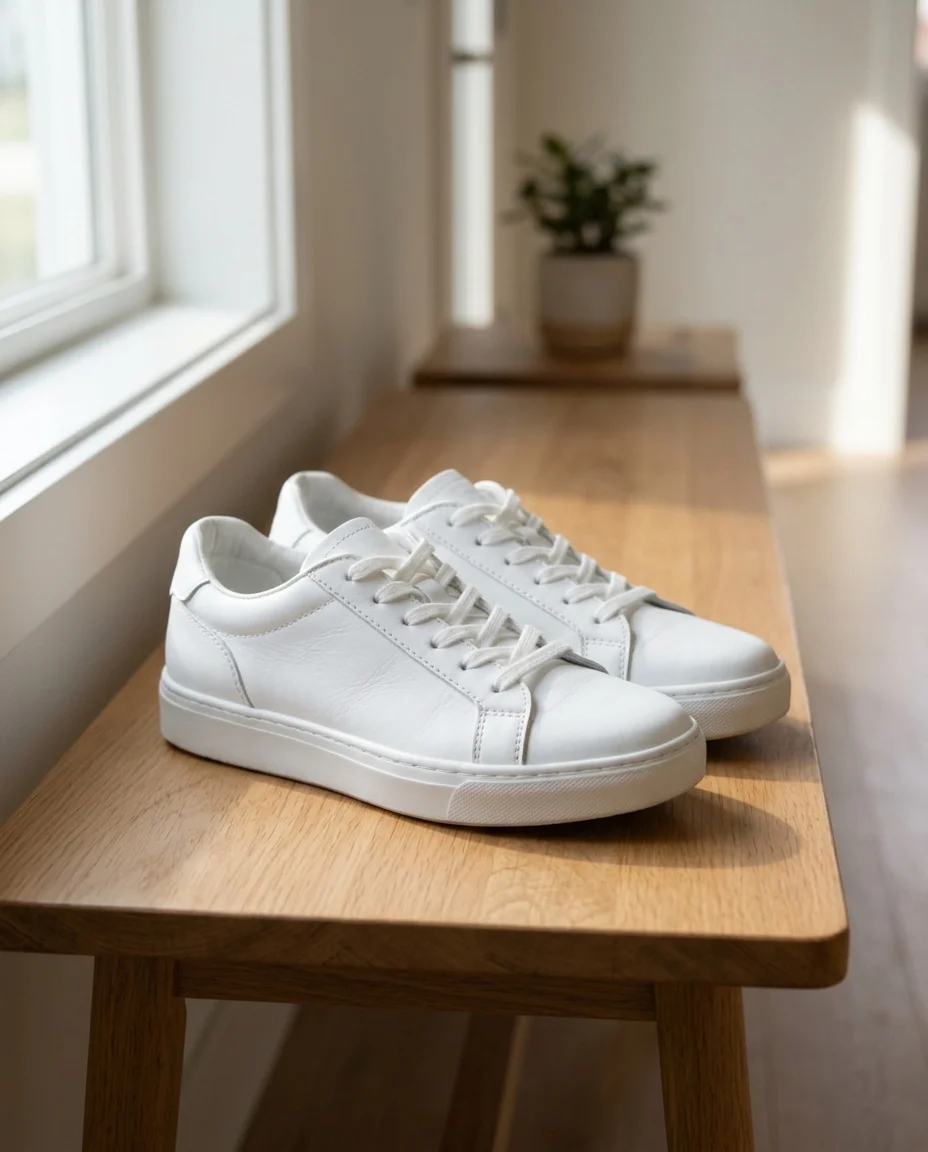
Actual output from the second submission of this brief: Nano Banana 2.1, Image-to-Image, 1K preset, requested 4:5; returned 928 × 1152 pixels. The completed retry consumed 3 credits. The first attempt timed out and its 3 credits were refunded.
The bench, window light, and distant plant matched the requested setting, but the shoes face right rather than retaining the source orientation. We did not accept this candidate as a faithful background-only edit. It remains useful as an environmental concept, with the orientation failure visible here so you can judge the limitation yourself. The short correction below addresses background clutter only; it is an untested suggestion and does not fix the demonstrated orientation change.
Check scale as well as detail. Does the pair look plausible relative to the bench? Does the surface support both shoes? Are reflections and shadows consistent with the window light?
If the environment competes with the product, you can try simplifying it:
Keep the shoes and bench. Remove the plant and background accessories. Reduce background detail and keep the clearest contrast around the shoes.
Scene 3: A landscape image with room for copy
For a banner, plan the product and text as separate parts of the final layout. Generate the setting with empty space, then add your headline, offer, and button as editable elements in your website or design tool.
Use the original sneaker reference. Preserve both shoes and their defining construction details. Create a wide composition with the pair in the lower-right third on pale stone. Keep the left half a continuous warm-gray background with low visual detail, suitable for dark headline text added later. Use soft side light and a grounded contact shadow. Keep the complete product within the frame. Do not generate words, graphics, buttons, extra shoes, or props in the empty area.
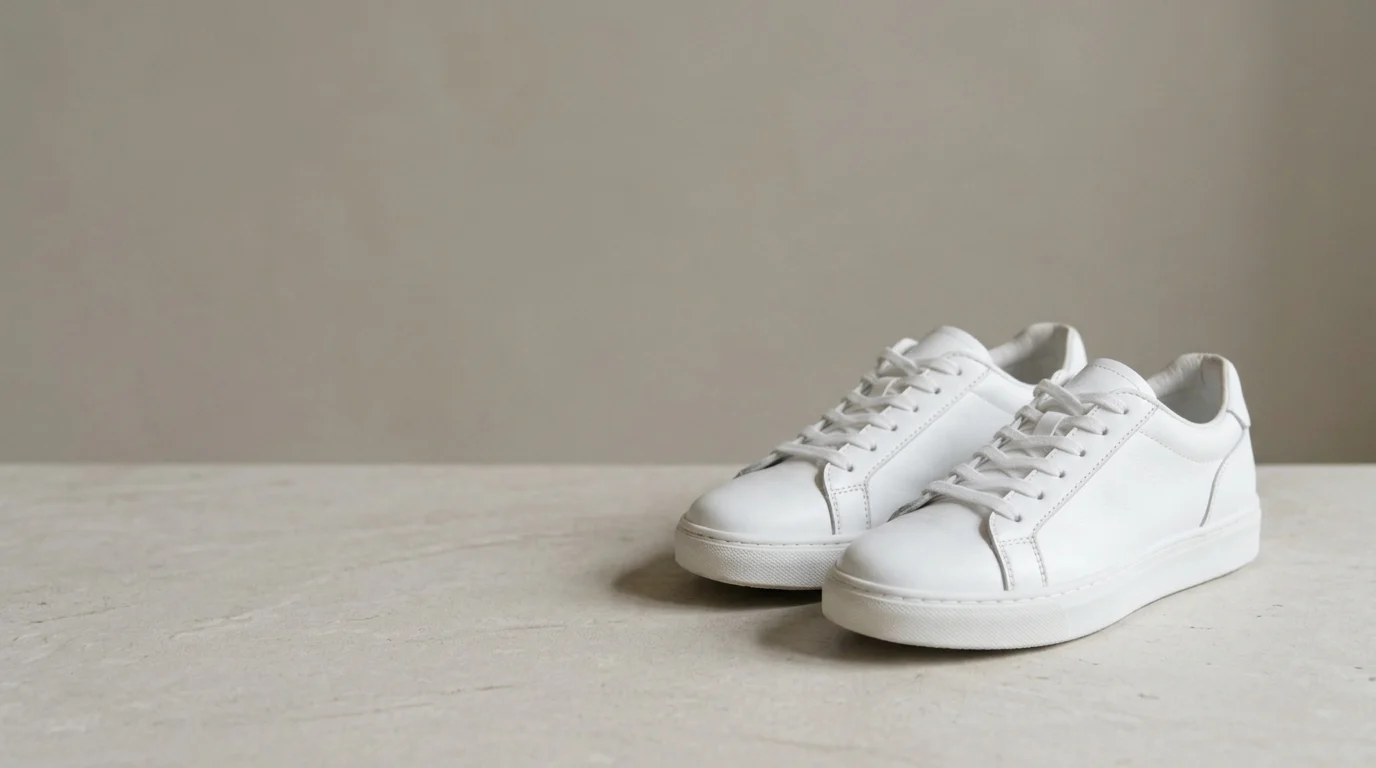
Actual test output: Nano Banana 2.1, Image-to-Image, 1K preset, requested 16:9. The returned image was 1376 × 768 pixels and consumed 3 credits.
This candidate placed the pair on the right and left a broad, quiet area on the left without generated text. We retained the layout for a banner concept. The left side still contains a wall-to-surface transition, so test your actual headline contrast over it rather than assuming all of the empty area is visually uniform.
Preview the result inside the actual banner layout. The empty area must survive its displayed crop, and the shoes must remain recognizable after resizing. Plan a separate portrait composition for mobile when the wide image cannot meet both requirements.
If the model fills the copy area, ask for a specific correction:
Keep the shoes in the lower-right third. Remove all objects and strong texture from the left half. Extend the plain warm-gray wall into one uninterrupted area. Do not move or enlarge the product.
Inspect the result and fix the right problem
Review the whole composition first, then inspect the product at full size. Keep the original reference beside the candidate.
| Problem | First correction | Approval condition |
|---|---|---|
| Product construction changes | Return to the original reference and simplify the requested edit | The important seams, shapes, and components match the approved source |
| Product floats above the surface | Specify the support surface and immediate contact shadow | The product has believable contact with the scene |
| Product looks too large or small | State its placement and scale relative to a recognizable surface | The proportions make sense in the environment |
| Logo or small lettering changes | Use the approved source for the final product area and finish it in a suitable editor | Text and marks have been checked directly against the approved original |
| Empty space fills with decoration | Name the exact area, background tone, and elements to remove | The intended copy fits without covering the product |
Return to the original product reference for each new scene. Repeatedly using an inaccurate output as the next source can carry its errors into later images. For a longer series, the character and product consistency guide explains how to define and reuse approved anchors.
Budget for the images you approve
The useful cost is the cost of reaching an acceptable deliverable. Record the model, resolution, images per batch, credits charged, revisions, and number of approved images. Count separate background removal or upscaling jobs when you use them.
Credits per approved image = total credits consumed by the task ÷ approved images. Check the task and credit history for any failure adjustments rather than assuming every unsuccessful result receives the same treatment.
What our four submissions cost
| Submission | Requested ratio | Outcome | Credits consumed after adjustments |
|---|---|---|---|
| Studio | 1:1 | Completed; retained as a studio composition | 3 |
| Lifestyle, first attempt | 4:5 | Timed out; task record showed a 3-credit refund | 0 |
| Banner | 16:9 | Completed; retained as a banner composition | 3 |
| Lifestyle, unchanged retry | 4:5 | Completed; orientation did not match the brief | 3 |
| Total | Four single-image submissions | Three returned images; two retained compositions | 9 |
Each submission displayed a 3-credit cost. Of the 12 credits allocated across four attempts, the failed task's 3 credits were refunded, leaving 9 credits consumed. That is 3 credits per returned image, or 4.5 credits per retained scene-layout candidate after counting the rejected orientation result. Neither figure is a verified cost for a finished, SKU-accurate product photograph. We did not run separate tools, purchase credits, or include finishing labor in these totals.
The refund describes this task's recorded outcome, not a promise about every failure or an aesthetically disappointing result. We checked the failed status and credit adjustment before making one unchanged retry. The three additional correction prompts in this guide are suggestions; we did not submit them in this run.
Use the price displayed for your selected model and settings before submitting. Credits are not a fixed cash price: the cash equivalent depends on the package you actually purchased. Larger batches create more candidates, not a guarantee of more approved images.
Finish the approved image for its destination
Download the accepted result and review it at the size where it will appear. Keep the source, prompt, settings, and accepted file together.
Use the separate background remover when you need a transparent product asset for further work. Inspect its edges, especially laces, holes, and reflective surfaces. Use the image upscaler after approving the content if you need a larger image; increasing dimensions does not repair an incorrect seam or label.
Before publishing an advertisement or client deliverable, review the Terms of Service, Privacy Policy, and Refund Policy for this service. Confirm the conditions that apply to your account, inputs, and intended use.
Whisk AI is a practical starting point when you have a clear product reference and want to explore different settings, social compositions, or campaign directions. For your first project, upload one product reference, start with the studio brief, and approve the product details before expanding into the other two scenes.