

How to Edit Product Photos with Krea 3 in Whisk AI
To edit a product photo with Krea 3, start with a clear source image, request one scene change, and compare the result against the original before accepting it. A request to preserve a label is useful guidance; the final file still needs inspection. This tutorial gives you a small, repeatable workflow for editing product images in Whisk AI.
The examples use an amber pump bottle as a planning exercise. The prompts are original templates, and the illustration explains input preparation. We have not run a Krea 3 product-fidelity benchmark for this tutorial.
Prepare a source that can answer the brief
Choose the actual product variant you need to show. Use an image where the full outline, closure, label, and relevant surface details are visible. A photograph of a different size or older label version gives you the wrong reference, however clear it is.
Write a short list of details you will inspect afterward. For the bottle example: the pump points left, the label sits below the shoulder, the glass is amber, and the bottle has a flat base. Replace those details with the features of your own source.
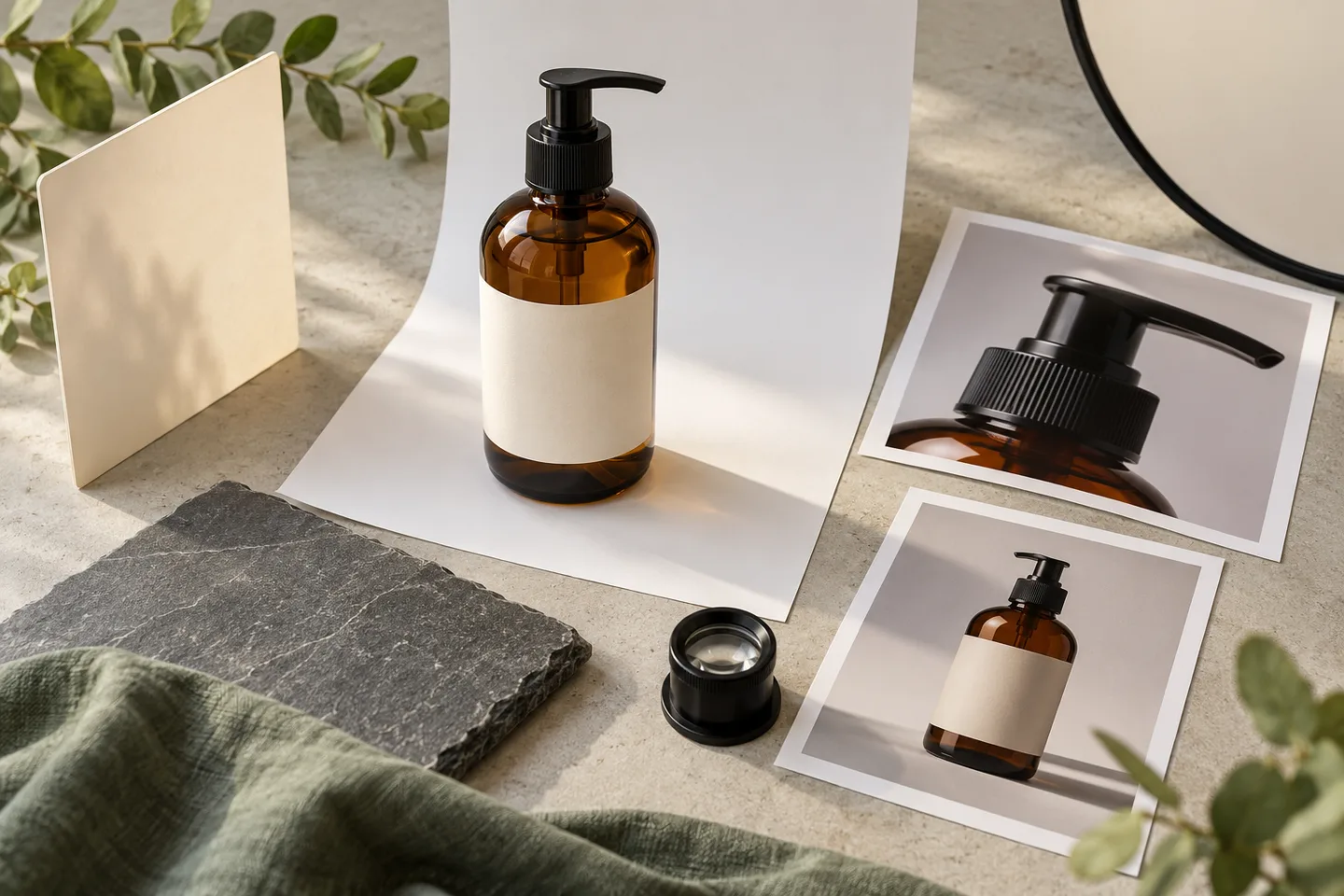
Original concept illustration of product-reference preparation. The bottle and prints are illustrative props, not verified Krea 3 inputs and outputs.
Keep scene references distinct from product references. A lighting reference should communicate light, not supply a second bottle with a different label. If a source creates ambiguity about which item is authoritative, leave it out of the first attempt.
Krea's model page describes references as a way to guide subject, composition, and style. Your reference plan should explain those roles. Check the selected model’s current upload controls for reference limits.
Set up one controlled edit in Whisk AI
Open the Whisk AI image workspace. For this Krea 3 task, use Image-to-Image because you already have a source photograph. Add your product reference, enter a brief, and review the selected model's available output settings and credit estimate before generating.
Begin with the smallest trial that lets you judge the result. Keep the source photo, the exact prompt, and a record of the settings. Do not assume that the reference count, file limit, or batch options described for another provider apply to your current workspace.
If you are unsure how the model selector differs from Generation Mode, read the Whisk AI modes and settings guide.
First prompt: change the setting
Start with one scene and keep the camera angle stable. Here is a brief you can adapt to a bottle photographed from the front:
Set the amber pump bottle from the uploaded photo on a pale limestone bathroom shelf, with a softly blurred cream wall behind it. Use gentle daylight from the right and a natural contact shadow. Keep the bottle's outline, pump direction, amber color, and label design unchanged; leave the label unobstructed.
Change “limestone bathroom shelf” to your desired setting. Keep the preservation sentence specific to your photograph. If the pump points right in your source, change that instruction before submitting.
The scene description gives the edit a visible target. The preservation sentence identifies what would make an otherwise attractive output unusable. Avoid adding unrelated goals such as a new camera angle or redesigned packaging in the same first attempt.
Review the product before the atmosphere
Open the result at its actual download size and compare it with the source. Check the product first, then the scene. This prevents a convincing environment from distracting you from inaccurate packaging.
| Area | Compare with the source | Decision |
|---|---|---|
| Label | Every visible word, symbol, color block, and border | Reject incorrect product information |
| Silhouette | Shoulder, base, width, height, and closure | Reject changed construction or variant |
| Orientation | Pump direction, visible side, and product angle | Revise a composition that contradicts the brief |
| Material | Glass color, transparency, finish, and reflections | Revise misleading material or color |
| Placement | Contact shadow, surface alignment, and obstructions | Fix floating objects or covered labels |
A sharp label is not necessarily an accurate label. Read the words instead of judging only crispness. If the source is too small to verify a critical detail, obtain a better source before approving the output.
For marketplace photography that must show the exact item, keep the original product pixels in a layered composition when reconstruction changes unacceptable details. You can prepare an authorized source with the background remover, inspect its edges, and combine it with a separately prepared setting.
Second prompt: make a campaign variation
Once a first scene passes review, change one creative element. Use the same original product reference for a new direction so you can compare both outputs against the same source.
Place the bottle from the product reference on a matte charcoal plinth against a warm grey backdrop. Add a narrow, soft highlight along the right edge and leave clear space above the bottle for campaign copy. Preserve the product's shape, pump direction, amber glass, and label artwork.
This changes the campaign treatment while keeping the product requirements stable. Add final headlines or legal copy separately so they can be proofread and edited without another image generation.
If you want several product variants, use a correct source for each variant. A request to infer a different package size from a single photograph cannot establish its real dimensions or label layout.
Fix the reason for rejection
When an attempt fails, name the defect before revising the prompt. Keep the next request narrow enough to tell whether your fix helped.
| What went wrong | A useful next move |
|---|---|
| The label changes | Return to a sharper original; remove conflicting references; use compositing if exact lettering remains unreliable |
| The bottle turns or changes proportions | Explicitly retain the source view; remove requests for a new camera angle |
| The product looks pasted into the scene | Clarify the supporting surface and light direction; inspect the contact shadow |
| Props cover the label | Ask for props behind or beside the product, with clear space in front |
| The result is attractive but off brief | Restate the intended deliverable and remove decorative instructions that compete with it |
Do not let repeated retries become an open-ended search. Decide in advance how many attempts you will spend on one direction. If the product still fails your accuracy checks, change the finishing method rather than simply making the prompt longer.
Keep a record that helps the next shoot
For each accepted image, save the source version, prompt, model label, output settings, charge, and the checks it passed. Separate “useful creative direction” from “approved final asset.” This gives your team a reusable brief and an honest account of how much work the image required.
Our earlier Whisk AI product-photo test documents a different model and a small real run. It shows how to record attempts and failures; its results and credit charges should not be transferred to Krea 3.
Open Whisk AI and prepare your first product edit. Review the displayed charge before budgeting a larger batch.
Published by Whisk AI. Sources and workspace entry checked October 25, 2026. These prompts are suggested trials, not tested output guarantees.