

GPT Image 2.6 Explained: Markup and Image Editing
GPT Image 2.6 is a version name in OpenAI’s GPT Image family that now appears in its image-editing documentation. The most useful detail for creators is markup: a transparent image overlay that guides an edit. That gives you a concrete question to explore—how to describe a local change while preserving the rest of a picture—rather than assuming a higher version number guarantees a better result.
You can work with GPT Image 2.6 in Whisk AI’s image workspace. This guide explains the documented editing concept and gives you a small product-image exercise, an adaptable prompt, and a checklist for deciding whether a result is ready to use.
Sources checked October 30, 2026. The exercise and illustration below describe an intended workflow; they are not recorded GPT Image 2.6 performance tests.
What do we know about GPT Image 2.6?
OpenAI’s image-editing reference explicitly names GPT Image 2.6 in the description of markup. The corresponding API specification change adds that field to image-editing requests.
Whisk AI’s available settings and displayed credit estimate determine the choices for your job.
For a first exercise, choose a change you can inspect without subjective scoring: recolor one object, then check whether its shape and surroundings survived.
What does markup mean for image editing?
A prompt describes the desired change in words. Markup adds a visual layer associated with the source. OpenAI describes a transparent PNG applied over the first input image, with matching dimensions after orientation and some transparent pixels. It cannot be supplied together with a mask.
A mask is a different input: its transparent areas identify where editing should happen. Neither input removes the need to say what you want changed. The documentation does not define a universal language for arrows, circles, or handwritten instructions, so a drawn symbol should not be treated as a guaranteed command.
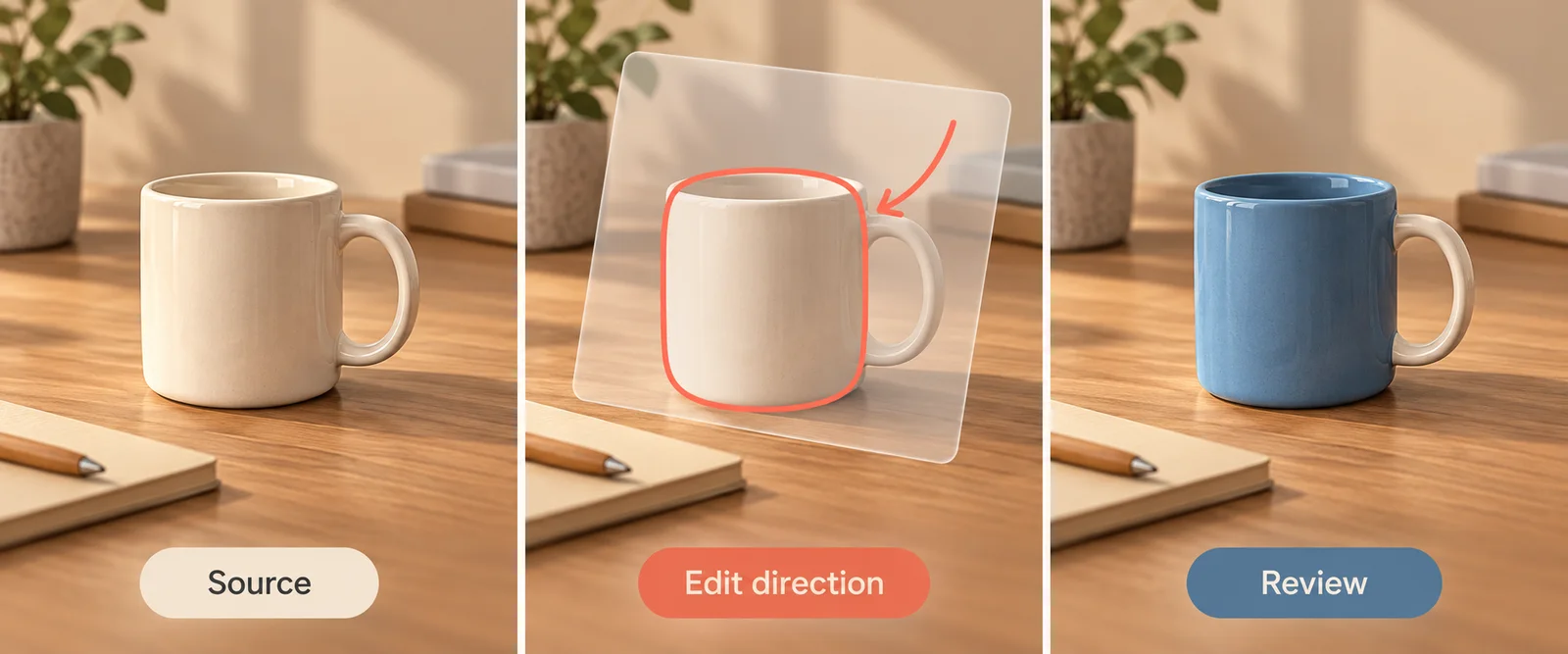
Original concept illustration, not a Whisk AI interface screenshot or a GPT Image 2.6 output comparison. The overlay illustrates edit direction; it does not document a supported drawing syntax.
This distinction helps even when you use a text-only editing brief. Separate the location, the intended change, and the things you need preserved. A request such as “make this blue” leaves more ambiguity than “change only the mug’s outer body to muted blue; preserve its cream handle and the wooden desk.”
Do not infer that a browser editor exposes every API field. Use the controls displayed for your chosen model in Whisk AI; this guide does not require a markup upload button.
Try one controlled product edit in Whisk AI
Start with a clear photograph of one plain ceramic mug on a desk. A simple object makes it easier to identify unintended changes than a crowded product arrangement. Keep the original file so you can compare the result with the same source each time.
Open the image workspace and use its image-editing workflow with GPT Image 2.6. Add your source image and a brief describing one change. For the mug exercise, adapt this prompt:
Change only the outer body of the ceramic mug to a muted blue glaze. Keep the handle cream. Preserve the mug’s outline, rim, position, perspective, and contact with the wooden desk. Keep the desk, background, and lighting unchanged. Do not add writing, patterns, objects, or decorations.
Replace the color and object details with your actual task. If the handle should change too, say so. Avoid mixing this first request with a new background, a new camera angle, and a new material: you would have several possible causes for any failure.
Before generating, check the available output settings and displayed credit estimate. No fixed resolution, file limit, turnaround time, or credit price is assumed here. If you need help locating the broader workflow, read the Whisk AI tools and image modes guide.
Review the result beyond the edited area
A successful color change can still leave you with an unusable product image. Compare the source and result at the same scale, then inspect the details that matter to your deliverable.
| Check | Accept when | Revise when |
|---|---|---|
| Requested change | The mug body has the intended color | The handle, desk, or background also changes color |
| Product geometry | Rim, handle opening, and silhouette remain plausible and consistent | The handle thickens, the rim bends, or the mug changes proportions |
| Surface and light | Highlights still fit the glaze and lighting direction | The recolored area looks flat or disconnected from the scene |
| Contact | The mug sits naturally on the desk | The base floats or the contact shadow becomes inconsistent |
| Unrequested content | No new decorations or objects appear | The image gains lettering, patterns, or duplicate objects |
If the handle changes, retry from the original with a clearer preservation instruction. If the result is attractive but depicts a different mug, reject it for a product listing. A pleasing image and a faithful product image serve different purposes.
For branded packaging, add a separate check for every visible word, logo, and small mark. Do not approve a listing image from its thumbnail alone. The character and product consistency guide explains how to keep a stable reference when preparing related images.
Should you replace a working GPT Image 2.5 workflow?
Use your own deliverable as the comparison. Keep the source image and brief consistent, record each model’s available settings, and judge the results against the same acceptance criteria. Count the credits spent on rejected attempts as well as the accepted image. This produces a cost per usable result without inventing a universal price or quality ranking.
Keep a working 2.5 workflow until the new result solves a real problem for you: fewer damaged labels, fewer unintended changes, or fewer revisions on your particular task. The version name alone cannot make that decision.
For a broader discussion of editing needs, see Seedream 5.5 vs GPT Image 2.5. To begin this exercise, return to Whisk AI’s image workspace with one source image, one requested change, and a short list of details you will inspect before accepting the result.