

Genjutsu AI Explained: Motion Transfer, Object Swap, and First Steps
Genjutsu AI edits footage you already have. Your source video supplies the action; reference images describe the character, product, or setting you want to introduce. Motion Transfer uses the performance to build a different scene. Object Swap focuses on a selected element within the existing shot.
You can use Genjutsu in Whisk AI’s video generator. Start with one clear change: put an original character into a walking performance, or replace a carton on a desk. This guide explains how to choose between those tasks, prepare your materials, and judge the result.
Documentation reviewed October 26, 2026. The examples below are original planning exercises, not recorded Genjutsu render tests.
What does Genjutsu AI do?
Think of the source clip as your performance reference. It establishes when a person turns, where an object moves, and how the camera follows the action. Your replacement references establish the appearance you want to bring into that performance.
This makes Genjutsu useful when the original take already contains movement worth keeping. A creator might reuse a walk with a fictional character. A marketer might try a replacement product in an existing tabletop shot. The Genjutsu product description presents both motion-led transformations and selected-element replacements.
Those are editing goals, not a promise that every generated frame will match your brief. You still need to inspect the complete clip.
Motion Transfer or Object Swap: choose by what should change
Ask two questions before preparing files: What is valuable about the original shot? What am I willing to rebuild?
| Decision | Motion Transfer | Object Swap |
|---|---|---|
| Main goal | Give an existing performance to a different character or scene | Replace a selected element in an existing shot |
| Source video’s role | Guide the action, timing, and camera movement | Establish the shot around the intended replacement |
| Reference image’s role | Describe the new character and any intended setting | Show the replacement person, product, outfit, or other target |
| First exercise | Make an original explorer character follow a recorded walk | Replace a red carton on a desk with a blue carton |
| First review question | Does the character remain recognizable through the performance? | Is the intended target replaced while the surrounding shot remains coherent? |
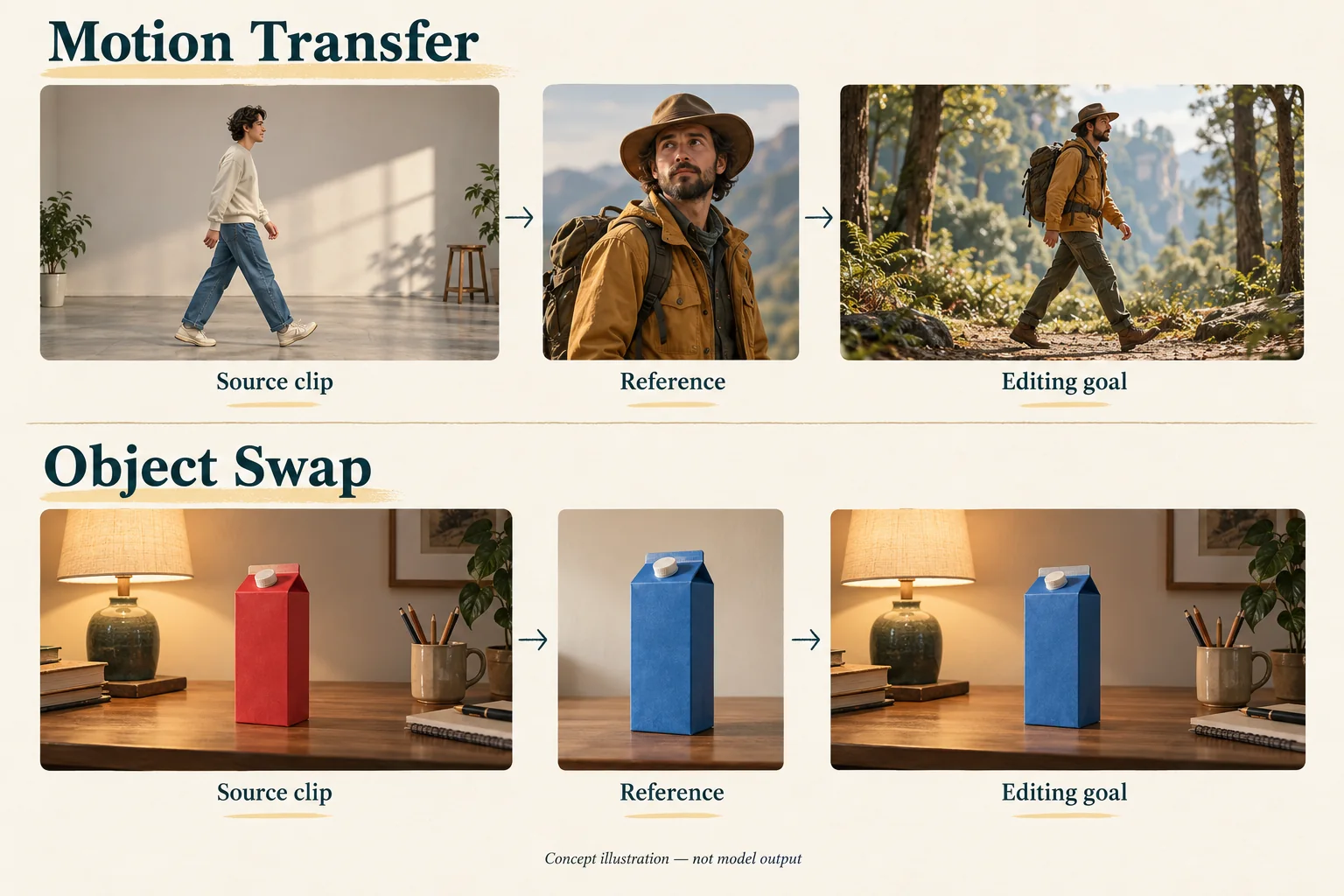
Concept illustration of the intended edits. These images are not Genjutsu outputs or evidence of preservation quality.
Choose Motion Transfer when the performance is your starting point
For the walking exercise, choose a clip where one adult takes a few readable steps. Prepare an image of your original explorer character. The goal is to transfer the action while directing the new character’s appearance and setting.
Decide whether the studio background matters. If you want a forest around the explorer, changing the wider scene is part of your brief. If keeping the original room is essential, compare that goal with a targeted character replacement before choosing your workflow.
Choose Object Swap when the existing shot already works
For the carton exercise, keep the desk, lamp, and camera movement. Change only the red carton to the blue version in your reference.
Choose a replacement with similar dimensions for this first exercise. That makes the review easier: you can focus on the carton’s shape, placement, and contact with the desk. More ambitious changes can come after you understand what a usable result requires.
Prepare a source clip and references with clear jobs
Watch the source before uploading anything. Mark the moment with the largest turn, strongest movement, or most difficult overlap. That moment often deserves more attention than the opening frame.
For a character, check that the source shows the body parts involved in the action. A face portrait cannot explain the explorer’s boots or coat length. Use a reference that shows the appearance you need, with an additional angle only when it contributes useful information.
For a product, choose a reference that makes the silhouette, color, material, and important packaging details easy to inspect. Avoid mixing different packaging revisions. If you need to prepare an original character or product reference, use the Whisk AI image workspace. The character and product consistency guide explains how to keep an approved visual anchor.
Write a short acceptance brief before generating:
- Change: the performer, or the specified carton.
- Preserve: the relevant action and timing; for the carton exercise, also the desk, lamp, and composition.
- Reject: identity changes, duplicate objects, floating products, or disrupted contact with the scene.
Use only footage and reference material you have permission to edit.
Plan your first Genjutsu edit in Whisk AI
Open the Whisk AI video workspace for your Genjutsu edit. The sequence below is a preparation and review workflow; use the input controls and settings shown for your selected model.
1. Choose one edit and pair its materials
Keep the source clip and its replacement reference together. For the explorer, pair the walking video with the approved character image. For the carton, pair the desk video with the blue product image. Check that you have selected the intended files rather than an earlier revision.
2. Describe the change and the details worth keeping
Use the examples below as starting briefs. Replace the character, scene, or product details with what your files actually contain. Adding more adjectives will not resolve an ambiguous replacement target.
3. Check the selected workflow’s inputs and cost
Before submitting, check its current video requirements, reference-image allowance, supported output settings, and displayed credit estimate. Limits and charges belong to the selected workflow; a default shown for another video model does not establish Genjutsu’s settings.
Keep the first attempt focused on one candidate you can evaluate. Record the chosen settings and quoted credits with the input files so later revisions have a useful baseline.
4. Review before making more variations
Watch the entire returned clip beside the source. If the proposed change works, save the accepted version and its inputs. If it fails, identify the specific moment and defect before preparing another attempt.
Two example briefs you can adapt
These prompts express the intended edit. They have not been validated through a paid render, and they do not guarantee the requested preservation.
Motion Transfer: an original character follows a walk
Use the walking performance in the source video to guide the explorer from the character reference. Keep the explorer’s face, short dark hair, mustard jacket, dark trousers, and brown boots consistent. Place the performance on a simple forest path. Follow the source walking rhythm and camera direction. Show one explorer, with no additional people or wardrobe changes.
The source supplies the movement. The reference supplies the character’s appearance. The forest is a requested scene change. If your reference shows different clothing, rewrite the clothing description to match it.
Object Swap: replace one carton on a desk
Replace only the red carton on the desk with the blue carton from the product reference. Preserve the replacement’s rectangular shape and blue color. Keep its placement and contact with the desk coherent throughout the clip. Retain the desk lamp, surrounding objects, background, and source camera movement. Do not add a second carton or redesign the room.
The target is identified by its color and location. The reference defines its replacement. The remaining instructions describe what you will check afterward. Small print and exact brand marks need especially careful review.
Review the middle of the clip, not just the thumbnail
A useful result must survive movement. Check the same moments in the source and candidate:
| Checkpoint | Character exercise | Product exercise |
|---|---|---|
| First clear appearance | Face, clothing, body proportions | Shape, color, count, starting position |
| Largest turn or movement | Identity through the turn, hands and feet | Perspective, corners, packaging details |
| Overlap or contact | Limbs passing in front of the body | Contact shadow, desk contact, any passing hand |
| Final visible moment | Same recognizable character | Same product without drifting or duplication |
| Whole clip | Action remains readable and timing serves the intended edit | Surrounding scene and replacement remain coherent |
Keep a brief result log: input version, settings, credits charged, accepted or rejected, and the reason. “Carton floats when the camera moves” gives you something to fix. “Looks wrong” does not.
Make a targeted revision
| What you observe | What to try next |
|---|---|
| The explorer’s outfit changes during a turn | Return to the approved reference; check whether the outfit is visible and consistently described |
| The wrong product changes | Identify one target by location and appearance; remove competing replacements from the brief |
| A hand merges with the product | Try a source with clearer contact and less overlap before adding prompt detail |
| The carton changes size or floats | Check whether the replacement fits the source object’s dimensions and contact surface |
| The room changes during a product replacement | Narrow the requested edit and compare whether Object Swap fits the task |
These are diagnostic suggestions. Change one input or instruction at a time, then compare the same checkpoint again.
Sometimes another attempt with the same source is the wrong next step. A different action, new physical interaction, or substantially different shot structure may require different footage. Higgsfield’s video editing guide discusses these boundaries. For a sequence built from newly planned shots, see how to make AI story videos with Whisk AI.
Where does Genjutsu Lite fit?
Genjutsu Lite is positioned as a faster, lower-cost option for existing-video edits. That positioning alone does not establish output quality, your account’s limits, or Whisk AI credit charges. Check the version and settings offered for your task; the official Genjutsu guide includes a Lite update.
For your first edit, keep the decision concrete: one source clip, one replacement goal, and a few details you can inspect. Start your Genjutsu edit in Whisk AI, then judge the complete video against that brief.