

Is Whisk AI Good for Product Photos and Social Media Images? Which Website Should You Use?
Whisk AI can be a useful choice for product scene concepts, campaign images, and social media illustrations. It needs a different standard of review when an image must show the exact item a customer will receive. For that job, begin with an accurate product photograph and preserve the product while editing its surroundings.
If you want to explore compositions from visual references, try the Whisk AI image workspace. If your main job is replacing backgrounds around existing product photos, evaluate Photoroom's product-editing workflow. If you need a finished post with editable headlines, prices, and a reusable layout, compare Canva. These tools can also form stages of the same workflow.
Published by the Whisk AI team. This guide discusses Whisk AI at whisk-ai.io. Our Whisk observations come from a small first-party test on October 23, 2026; the Photoroom and Canva descriptions come from their documentation checked on October 24. We did not run a three-platform benchmark.
Which website fits the image you need?
Decide what you are delivering before deciding which generator to use. A product listing, a campaign concept, and a sale announcement ask different things of the image.
| Your deliverable | Website or route to evaluate | Why it fits | What still needs checking |
|---|---|---|---|
| Several creative settings for one product reference | Whisk AI at whisk-ai.io | Image-to-Image and Whisk modes provide reference-led ways to explore scenes and visual directions | Product shape, orientation, materials, labels, and whether revisions outweigh the value of the concept |
| An existing product photograph with a different background | Photoroom at photoroom.com; or a cutout-and-composite workflow | Photoroom documents product-image background generation using prompts, themes, and image inspiration | Cutout edges, reflections, shadows, and any changes near the product boundary |
| A social post with editable offer text and a repeatable composition | Canva at canva.com | Its social design workflow centers on templates and finished layouts | Template and asset access, paid feature requirements, export size, and text readability |
| An exact catalog photograph | An original photograph with controlled background editing and retouching | Keeping the product itself avoids relying on a generated reconstruction of its details | Every customer-visible feature, final crop, and the listing's image requirements |
There is no overall winner in this table. We selected these routes because they address different parts of the same product-marketing task, not because we measured identical capabilities or compared every available service.
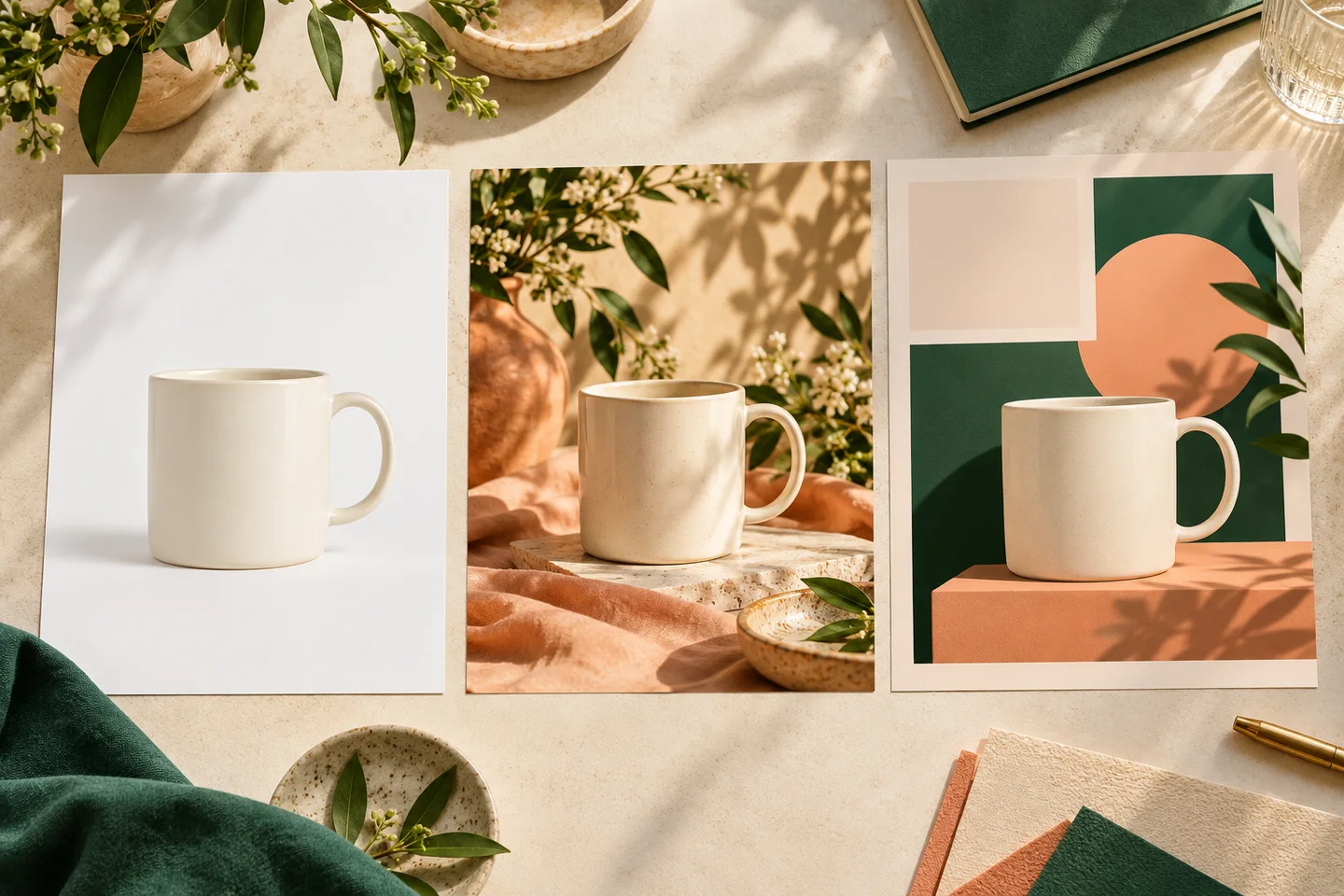
Concept illustration generated for this article. It explains three deliverables; it is not a test output, an interface screenshot, or evidence of product fidelity.
When Whisk AI is worth trying
Reference-led creation is useful when you know the subject but have not settled on a setting. You might want a neutral studio composition, a seasonal tabletop scene, or a wide image with room for a headline. The point of the first round is to find a promising visual direction.
In the Whisk workspace, Image-to-Image is a practical starting point when you already have a product reference and a written edit instruction. Whisk separates subject, scene, and style references when your brief is easier to express through images. Neither mode makes a written request to preserve an object into a guarantee that every feature will remain unchanged.
For social images, Whisk is worth evaluating for the picture underneath the message: a mood, setting, illustration, or campaign variation. Leave enough quiet space for copy, then add the final price, headline, and logo as editable elements in a layout editor. This lets you correct an offer without regenerating the whole scene.
It is less suitable as a complete production process when every image needs the exact label, multiple legally reviewed text blocks, or an editable layered client file. A visually appealing raster image does not by itself satisfy those deliverables.
What our small product test actually showed
We used one existing sneaker demonstration reference, Nano Banana 2.1, Image-to-Image mode, 1K output, and one image per submission. We submitted four jobs to explore three scenes. Three returned images; one timed out and its three credits were refunded. The run consumed nine credits overall.
| Requested scene | What we observed | How we treated it |
|---|---|---|
| Neutral studio | Both shoes remained in frame with a simple surface and contact shadow | Retained as a composition candidate; not certified as an exact reproduction of every construction detail |
| Wide campaign banner | The shoes sat toward the lower right, leaving substantial space on the left; a wall/surface line still crossed that space | Retained as a layout candidate requiring finishing |
| Lifestyle bench scene | The environment followed the intended direction, but the shoes faced the opposite way from the reference | Rejected as a faithful background-only edit |
The full product-photo test contains the reference, outputs, settings, prompts, and timeout record. The source was an existing site demonstration asset; we do not present it as a new photograph of a physical SKU. We did not test branded packaging or establish an accuracy rate across products.
That limitation matters. The test supports trying Whisk for scene exploration. It does not establish that generated scenes are ready for an exact-product listing, or that the same result will hold for your product, model, or account.
When to keep the original product photograph
If customers use the image to decide which exact item to buy, identify the features that cannot change. On a bottle, that may be the cap, label wording, fill level, and glass color. On a shoe, it may be the sole profile, seams, orientation, and number of eyelets.
Start from a photograph that already shows those features clearly. Isolate the product, inspect the cutout, and change the background without intentionally redrawing the foreground. Whisk's background remover provides a separate cutout route; inspect edges before placing the result into another composition.
Photoroom is also relevant to this task. Its AI Backgrounds documentation describes background creation from text, themes, and image inspiration, with options differing across platforms. It also documents consistency controls for certain batch and catalog workflows. Those are reasons to evaluate it for repeated product-background work, not evidence that every cutout or generated background will pass your review.
Use a difficult sample, such as reflective packaging or a transparent bottle, before committing a catalog. Check edges at full size, whether the original shadow fits the new lighting, and whether a transparent object contains traces of the old background. If the composite fails these checks, manual retouching or another photograph may be the more efficient choice.
When Canva is the more direct starting point
A complete social graphic includes more than an image. A sale announcement might need a precise price, a deadline, a logo, and text that remains legible on a phone. If those layout requirements dominate the work, start in a design editor rather than generating variations of the whole post.
Canva's social media tools offer templates and design workflows for posts and other social formats. That makes Canva a relevant option for assembling the final composition. Its background remover page also describes a way to isolate an uploaded subject. Check the actual plan for the features and assets you intend to use.
One reasonable combination is to generate a scene candidate in Whisk, review the product, then place the accepted image into a Canva layout with separate text. Another is to skip generation and use a real product photograph in that layout. We have not measured which combination is faster or cheaper; the right starting point depends on what is missing from your current materials.
How to move between the tools without repeating the job
Choose the next tool only when you can name the unfinished task. If a scene is approved but the headline needs work, another generation is usually the wrong next step: keep the image and edit the text in the layout. If the product has changed, adding a polished template will not correct it.
| Stage | Material to carry forward | Decision before continuing |
|---|---|---|
| Explore in Whisk | The original reference and an accepted scene candidate | Is this a useful concept, or has the product changed enough to reject it? |
| Prepare the product in a background-editing workflow | A source photograph and its inspected cutout or background-edited result | Are the label, edges, transparency, and shadows appropriate for the intended use? |
| Assemble in Canva | An approved image, the authorized logo asset, and exact copy | Can the offer be edited separately, and is the final crop readable on a phone? |
For a seasonal product announcement, you might explore a botanical setting in Whisk and keep a promising composition. If the object itself has drifted, prepare the original photograph in Photoroom or a cutout-and-composite workflow instead of accepting the redrawn product. Use a layout editor to place the approved image and add the offer as separate text. This is a suggested handoff, not a measured three-tool test or an automatic integration.
Sometimes the shortest route uses only one tool. An accurate photograph and a simple sale message may be enough to begin directly in Canva. A product-background job may finish in Photoroom. A text-free illustration may finish in Whisk after review. You do not need three subscriptions simply because the tools appear in the same comparison.
Before committing, try one representative product. Define its non-negotiable details, the target crop, and what counts as accepted. Save the downloaded result and record the model, settings, charges, rejected attempts, and finishing time. Use our character and product consistency guide if the same product must appear across several images.
Calculate cost per accepted result
Use net credits consumed ÷ accepted results, where net consumption includes rejected successful jobs and excludes credits actually refunded. Record layout and retouching time separately. If you accept no results, there is no useful per-result figure: the trial has failed the acceptance test.
In our small run, nine credits produced three returned images, but only two were retained as scene-layout candidates. That is 4.5 credits per retained candidate, not three credits per finished product photograph. We did not verify the cost of delivering SKU-accurate final assets. The observed timeout refund is a record of that job, not a promise that an aesthetically disappointing output will be refunded.
Before paying, inspect the current account's charge for your intended settings, the billing period, renewal terms, commercial-use conditions, and treatment of unused credits. Use the policies of the website you are actually purchasing from: for whisk-ai.io, read its terms, privacy policy, and refund policy. If a requirement is unclear, resolve it before uploading sensitive materials or committing a larger budget.
Which route should you choose?
Choose Whisk AI when the missing asset is a visual direction: a scene, mood, or campaign composition you can inspect and refine. Evaluate Photoroom or another controlled background-editing workflow when preserving an existing product photograph is the central requirement. Choose Canva when the main deliverable is a finished social layout with editable copy.
You can start with one product reference in Whisk and keep the trial small. Continue only if the accepted images meet the standard you set for that particular use. A good campaign concept and an accurate catalog image can both be valuable; each has to pass its own review.