

GPT Image 2.6 SVG Output: Prompts, Use Cases, and File Checks
GPT Image 2.6 supports SVG generation, making it useful to explore when your deliverable needs editable shapes and colors. A website icon, a simple brand illustration, and a graphic reused at several sizes are good reasons to consider the format. A realistic product photograph usually calls for a raster image instead.
The important distinction is the file you receive. A flat illustration saved as PNG can look like vector art without containing editable vector paths. Asking for “SVG style” does not, by itself, select SVG output.
Start your visual brief in Whisk AI’s image workspace with GPT Image 2.6. Before committing to a vector deliverable, check the output formats available for the selected workflow. This guide explains the model’s documented SVG capability and how to review a finished asset; it does not assume that every API option appears in the workspace.
Sources checked November 5, 2026. The prompts below are original examples to try, not recorded model tests.
What does GPT Image 2.6 SVG output mean?
SVG stands for Scalable Vector Graphics. It is an XML-based format that describes two-dimensional graphics. Vector shapes can be resized without the pixelation associated with enlarging a bitmap, and the document can be edited using compatible software. Source: MDN’s SVG overview.
For GPT Image 2.6, OpenAI documents an SVG-generation process that first creates a reference image, then produces vector content from it. The returned SVG is static and excludes scripts, external resources, and embedded raster images. The quality setting applies to the reference image. Source: image generation guide.
That makes the feature relevant to reusable graphic assets. It does not guarantee a neatly organized design file, perfect typography, or a symbol that works at every size. You still need to inspect the result.
When should you choose SVG instead of PNG?
Choose according to what happens after generation. If the next step is changing a fill color or resizing an illustration across layouts, vector content can be helpful. If the next step is publishing a detailed photograph, a raster format is often a more practical fit.
| Deliverable | Format to consider first | What to check |
|---|---|---|
| Simple website icon | SVG | The silhouette stays readable at its actual display size |
| Flat brand illustration | SVG | Shapes and colors are manageable in your design editor |
| Small diagram with a few symbols | SVG | Connections, labels, and spacing are correct |
| Realistic product photograph | PNG, JPEG, or WebP | Texture, lighting, product accuracy, and delivery dimensions |
| Cutout with hair or soft texture | Transparent PNG or WebP | Alpha edges on light and dark backgrounds |
| Social post uploaded to a platform | The platform’s accepted raster format | Correct export dimensions and readable text |
These are workflow recommendations, not a model leaderboard. An SVG source can still be exported to PNG for a destination that requires it. Keep the source when you expect to revise the artwork later.
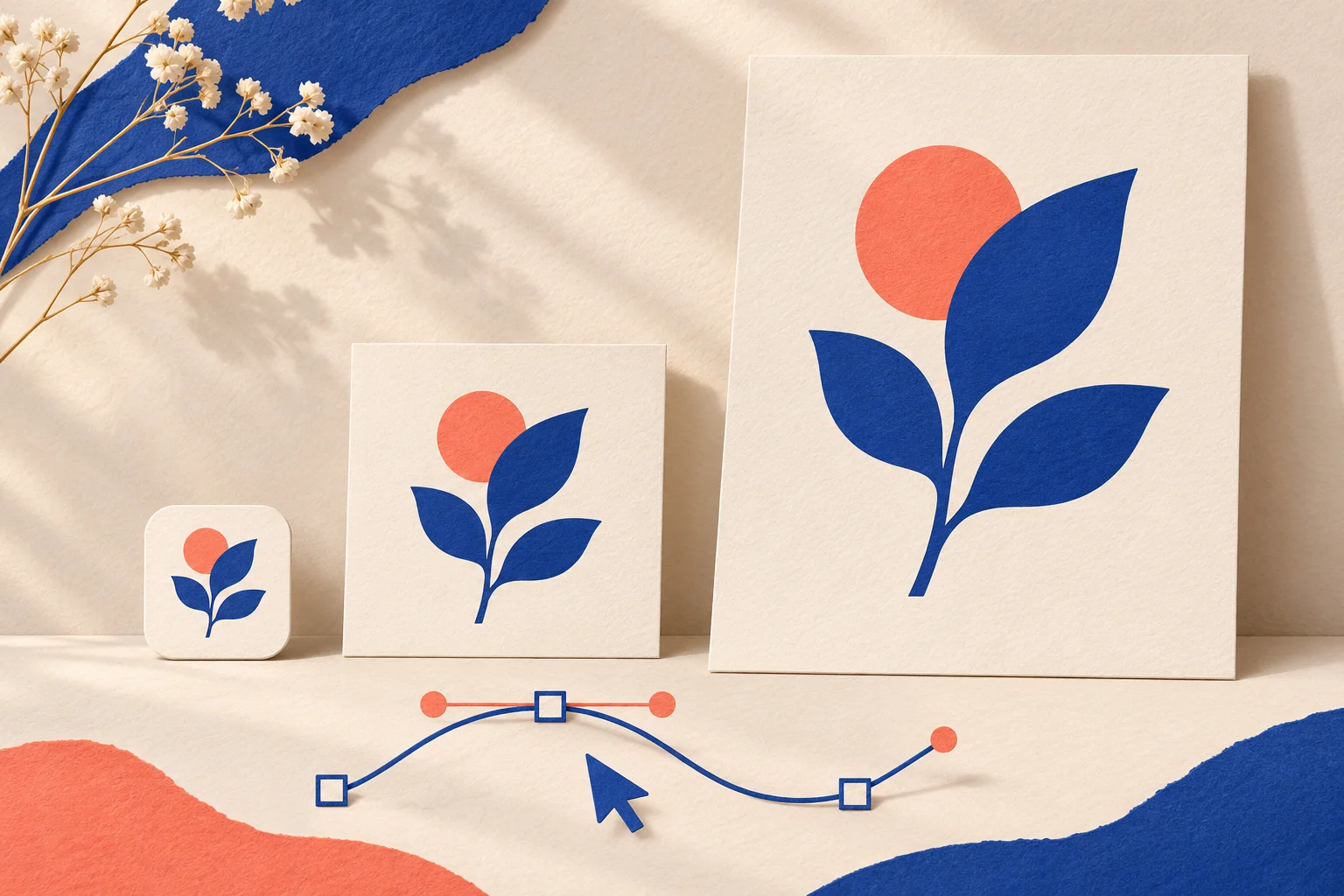
Original raster illustration of scalable graphic assets. This WebP is explanatory artwork, not an SVG download, a product screenshot, or evidence of GPT Image 2.6 output quality.
Write a brief that is easy to turn into vector artwork
A useful SVG brief identifies the subject, intended placement, shape language, palette, and smallest display size. “Make a beautiful logo” leaves all of those decisions open.
For a first attempt, use one subject and a restrained palette. Ask for clear negative space and a strong silhouette. Avoid combining a tiny icon, detailed scene, long slogan, and realistic surface texture in the same brief.
Prompt 1: a small website icon
Create a simple sprouting-seed icon for a gardening website. Use two leaves and one curved stem, with a clear silhouette and generous negative space. Use solid forest-green shapes, no gradients, no texture, no shadow, and no text. Keep the composition centered and recognizable at a 32-pixel display size. Leave the background transparent. The intended deliverable is editable SVG artwork.
The last sentence describes the desired deliverable; it does not replace selecting an actual SVG export. The 32-pixel requirement is a design target to test, not a promise of automatic optimization.
Change the subject and palette to fit your project, while keeping the small-size constraint. After generation, view the icon at 32 pixels before judging its enlarged preview.
Prompt 2: a reusable brand illustration
Create a flat illustration for a reusable-bottle brand: one bottle beside a single leaf, arranged as a compact square composition. Use navy, mint, and warm white only. Build the design from broad, clean shapes with distinct edges. No photographic reflections, tiny decorative marks, lettering, or drop shadows. Keep the bottle and leaf visually separate so their colors can be adjusted independently. Intended output: SVG.
This brief puts reuse ahead of surface detail. Once you have the file, verify whether selecting and recoloring the two subjects is practical. The request for separate elements is an instruction to evaluate, not a guaranteed layer structure.
Prompt 3: a simple process graphic
Create a horizontal three-stage process illustration showing a seed, a young plant, and a mature leafy plant. Use consistent visual weight and even spacing. Connect the stages with two simple right-pointing arrows. Use dark green and muted gold on a transparent background. No labels, numbers, gradients, texture, or decorative border. Each stage should remain easy to identify when the entire graphic is 600 pixels wide. Intended output: SVG.
Add final labels in your layout if you need precise typography or multiple languages. This also lets you revise wording without regenerating the illustration.
Use Whisk AI to develop the visual direction
Open Whisk AI, choose GPT Image 2.6, and start with a brief matched to your deliverable. Review the available output settings and credit estimate before generating.
Judge the first result on composition and simplicity. For an icon, ask whether you can recognize the subject without zooming in. For a brand illustration, check that the palette and visual weight fit the surrounding page.
If the composition is wrong, revise the brief before investing time in cleanup. Try a focused correction such as:
Simplify the leaves into two broad shapes, remove all interior decoration, and increase the empty space between the stem and bottle. Preserve the overall square composition and three-color palette.
When SVG export is offered for your chosen workflow, download the SVG and perform the checks below. If the available download is PNG or WebP, keep it as a visual concept; obtaining editable vector artwork still requires a vector-production step. Renaming the file extension does not perform that conversion.
For choosing between model generations, read GPT Image 2.6 vs GPT Image 2.5. For broader local-edit planning, see the GPT Image 2.6 editing guide.
Check the SVG before handing it off
A clean browser preview is only the first check. Open the file in your intended vector editor and test the changes you expect to make later.
| Check | Practical test | Revise when… |
|---|---|---|
| Actual file format | Confirm the file parses as SVG/XML and opens as vector artwork | It is a renamed bitmap or does not open correctly |
| Editable shapes | Select a leaf, bottle, or other major element and change its color | A simple adjustment requires extensive reconstruction |
| Small-size readability | View the graphic at its intended minimum display size | Gaps disappear or several shapes merge into one blob |
| Transparent background | Place the asset over both light and dark backgrounds | An unwanted background shape or poor contrast becomes visible |
| Typography | Check every character and how the editor represents it | Wording is wrong or required text edits are impractical |
| Cropping and spacing | Place the asset in the actual page or slide | Content clips, padding is uneven, or alignment feels wrong |
| File complexity | Inspect file size and the effort needed for a routine edit | The asset is cumbersome for its intended use |
Do not assume that visible lettering remains editable text. If a word is represented by outlines, it may look correct while requiring shape edits to change. For an exact wordmark, keep a separately controlled typography step.
Also distinguish scaling from legibility: vector edges can remain crisp while the design becomes unreadable. A detailed illustration reduced to favicon size may need a simpler version.
SVG generation has specific limits
The documented API route is POST /v1/images/generations, with output_format set to svg and n set to 1. SVG output does not support streaming, partial images, output compression, or prompt rewriting. The image-edit endpoint does not output SVG, and SVG is not accepted as a raster input for image edits. Source: OpenAI generation documentation.
For a creator, the practical consequence is simple: do not plan an upload-edit-download loop around an SVG file without checking that your tools support that exact workflow. Edit vector geometry in a compatible editor, or retain a raster preview for a separate image workflow. A preview is not a substitute for the editable source.
SVG is also not the same as an animated GIF. A static vector illustration is appropriate when you need reusable shapes; a looping animation is a separate deliverable.
How should you budget for SVG work?
OpenAI describes SVG billing as two components: generating the reference image and the tokens used by the authoring model to produce the SVG. Do not assume an SVG costs the same as a PNG just because they begin with the same visual brief. Source: SVG cost guidance.
For Whisk AI, use the displayed estimate for the workflow you select. No fixed SVG credit price is assumed here.
Track the whole deliverable: generation attempts, vector cleanup, typography fixes, and final exports. A result that takes a little longer to generate may still save time if its shapes are easier to reuse. Conversely, a visually impressive preview can be a poor starting point if a simple color change requires rebuilding the asset.
Start with one small graphic, one clear palette, and one intended placement. Develop your brief in Whisk AI, then verify the delivered file before treating it as production-ready vector artwork.