

ArtCraft vs Photoshop vs Whisk AI: Which Tool Fits Your Image Workflow?
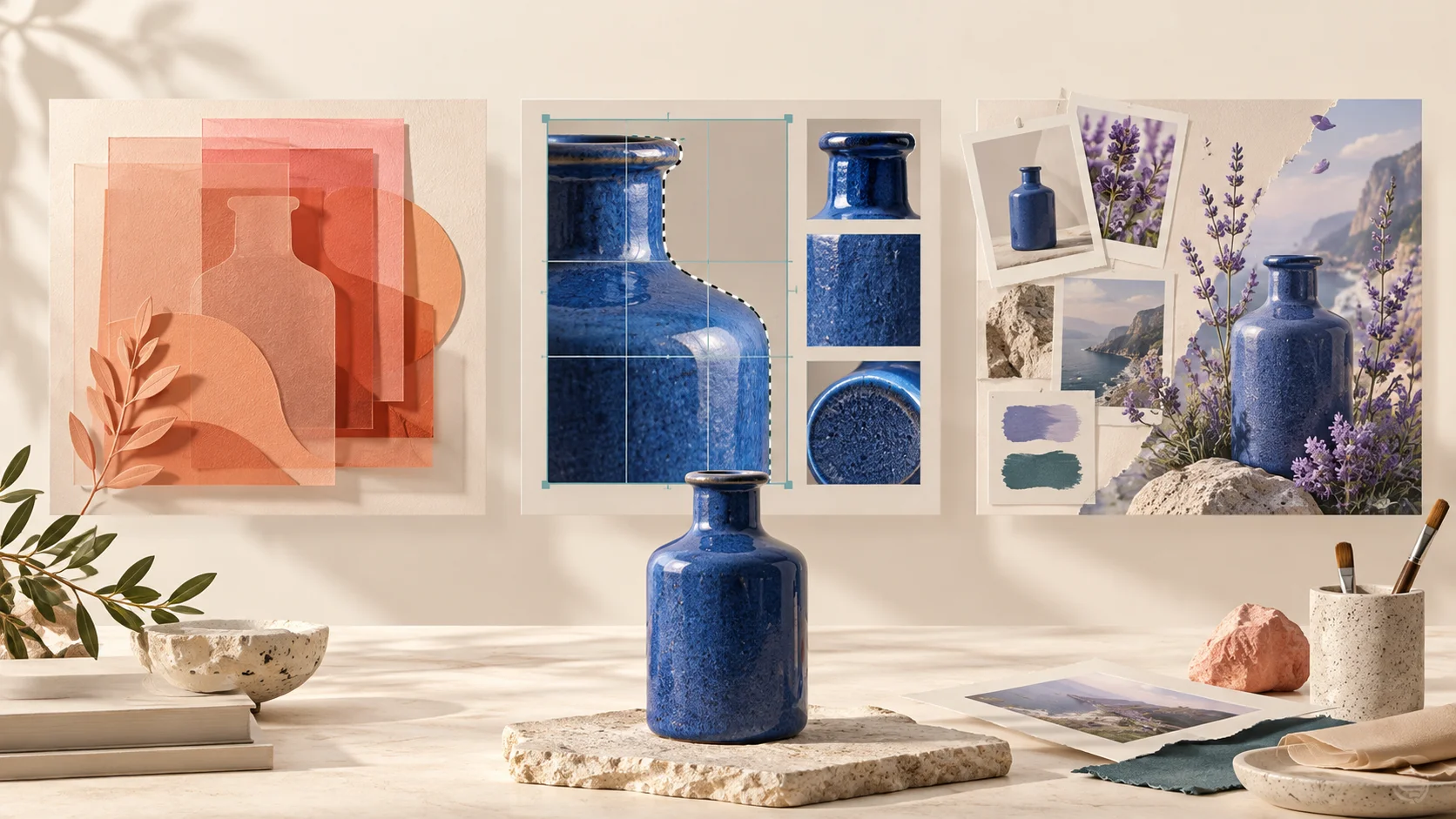
Choosing between ArtCraft, Photoshop, and Whisk AI starts with the image you need to deliver. An experimental campaign concept, a carefully retouched product photo, and an editable client file require different kinds of control. Whisk AI offers a browser-based route from prompts and reference images to new visuals; the question is where that route fits alongside an image editor.
Our recommendation: consider PhotoCraft for a free, open-source editing workflow, Photoshop for detailed editing and layered deliverables, and Whisk AI for reference-led image exploration. The deciding factor is how much must remain editable after the first result.
This comparison refers to Whisk AI at whisk-ai.io, not Google's Whisk experiment. It draws on documented capabilities, not a controlled performance test. All illustrations are conceptual, not outputs produced by the three competing tools.
First, which ArtCraft are we comparing?
ArtCraft has two relevant offerings. Its AI studio focuses on controllable image and video creation, including scene composition and character posing. Its separate Crafting Apps collection covers seven creative disciplines. PhotoCraft is the image editor in that collection, so it is the main ArtCraft product compared here. The official apps directory still labels PhotoCraft “Early alpha.”
This distinction matters when evaluating Photoshop alternatives. A capability advertised for ArtCraft's AI studio should not automatically be treated as a PhotoCraft feature. Likewise, the existence of a free PhotoCraft download does not establish the cost of every ArtCraft generation workflow.
ArtCraft vs Photoshop vs Whisk AI at a glance
The table compares each option by its documented workflow, the control it offers, and the constraints that affect your choice.
| Criteria | ArtCraft PhotoCraft editing | Photoshop editing and generation | Whisk AI reference-led creation |
|---|---|---|---|
| Starting point | Existing images and layered documents | Images, documents, or AI prompts | Prompts and optional reference images |
| Main interaction | Canvas and editing tools | Layers, selections, and AI tools | Reference inputs and written instructions |
| Layer control | Listed by developer; verify compatibility | Document layers with independent editing | No layered project export verified |
| Creative generation | AI studio is a separate offering | Generative Fill and other AI tools | Text-to-image, image-to-image, Whisk mode |
| Access | Desktop; web build also listed | Desktop, web, and mobile plans | Browser-based workspace |
| Cost structure | Free image editor | Subscription; AI access varies by plan | Credit-based generation; check current options |
| Recommended use | Exploring an open-source editing setup | Detailed revisions and editable handoff | Concepts, remixes, and visual variations |
| Main limitation | Early-stage release; validate your files | Subscription and editing skills required | Generated details need review; raster handoff |
Compared October 11, 2026. Recommendations describe workflow fit, not measured speed or image-quality rankings. Sources: PhotoCraft, Photoshop, and the Whisk AI workspace linked above.
Where each tool fits
ArtCraft PhotoCraft: a free editor to evaluate with your own files
PhotoCraft's official page lists layers, masks, adjustment layers, and PSD/PSB reading and writing. It also lists version 0.5.0 downloads and desktop support for macOS, Windows, and Linux. These make it relevant to people considering an open-source editing setup. They remain developer claims until verified against the files and operations your work requires. PhotoCraft product page
For someone learning compositing or maintaining a personal project, trying that setup can be worthwhile. For a client job, the useful test is more specific: can you reopen your document, make the required revision, save it, and return it to the recipient without losing anything important?
A familiar interface can help you find tools. It does not establish compatibility with every document that uses similarly named tools.
Photoshop: detailed editing with AI inside the workflow
Photoshop combines manual image editing with generation. Its Generative Fill workflow lets you select an area, enter instructions, and choose a generated variation. That gives users another way to change content inside an existing composition. Adobe Generative Fill documentation
The advantage for revision-heavy work is the ability to keep elements independently editable. Adobe's Layers panel supports selecting, hiding, reordering, and changing layers without changing other elements. That is useful when a client wants a different headline, a smaller subject, or a lighter background after approving the overall concept. Adobe Layers documentation
Choose this route when those exact revisions are central to the job. The tradeoff is that you still need to understand the document and how to edit it; a subscription alone does not remove the work of careful retouching.
Whisk AI: develop a visual direction from references
Whisk AI's workspace offers text-to-image, image-to-image, and Whisk modes. In Whisk mode, reference inputs describe the subject, scene, and style. You can add instructions to guide the result. This makes it a useful starting point when you can show the look you want more easily than you can describe every detail. Whisk AI workspace
For example, a creator might combine a product reference with a botanical setting and a muted editorial style. The value is in exploring whether that direction works before investing in detailed assembly.
That same freedom is a limitation when product accuracy is essential. Review the output against the original: has the silhouette changed, did the label drift, or did the material become something else? A visually appealing reinterpretation may still fail a commercial brief.
Treat the downloaded image as an asset you may continue editing. Do not plan a client handoff around editable PSD layers from Whisk AI; that capability was not verified for this comparison.
One product image, three practical decisions
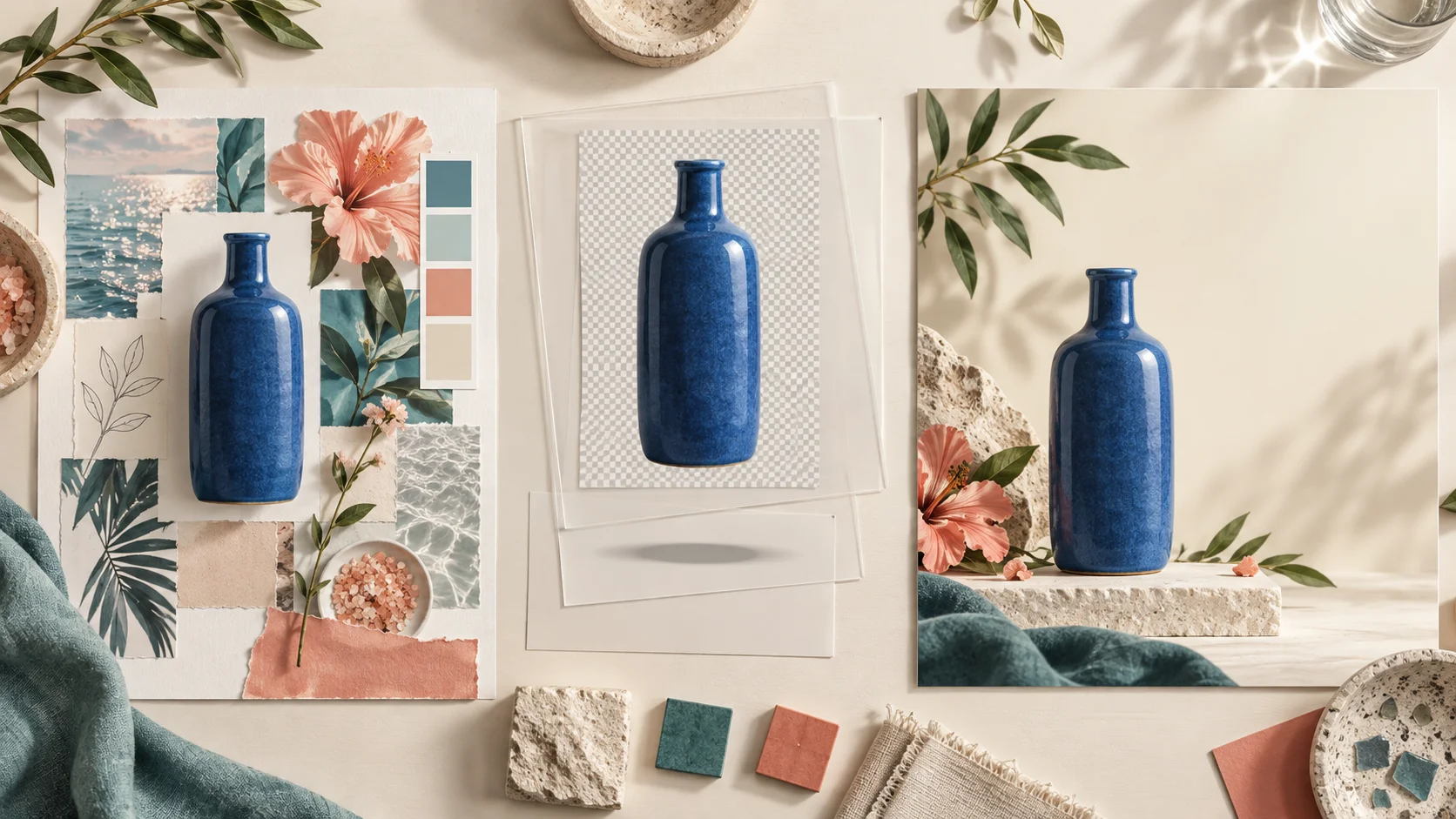
Illustrative scenario, not a three-tool benchmark.
Imagine you need a campaign image for a blue ceramic bottle. You have the original photo, a brand palette, and a request for a calm botanical setting. Before opening an app, separate three tasks.
Find the direction. If the team has not agreed on the setting or mood, Whisk AI is a reasonable place to explore reference-led variations. Photoshop also offers generation, and ArtCraft's separate AI studio may be relevant if the brief calls for scene layout control. Decide by the interaction you need, rather than assuming only one product can generate images.
Protect the product. Once the direction is approved, the actual bottle shape and identifying details become constraints. A practical approach is to retain the original product photograph and build the scene around it. Use a layered editor when you need to reposition the product and correct its edges independently of the background.
Prepare the handoff. A finished social image and an editable client master are different deliverables. If the client will change wording or reuse the product cutout, keep those elements separate. Photoshop is our preferred choice for that requirement; evaluate PhotoCraft with the exact project before relying on it.
An image generator can supply creative material without becoming the editor responsible for every final revision.
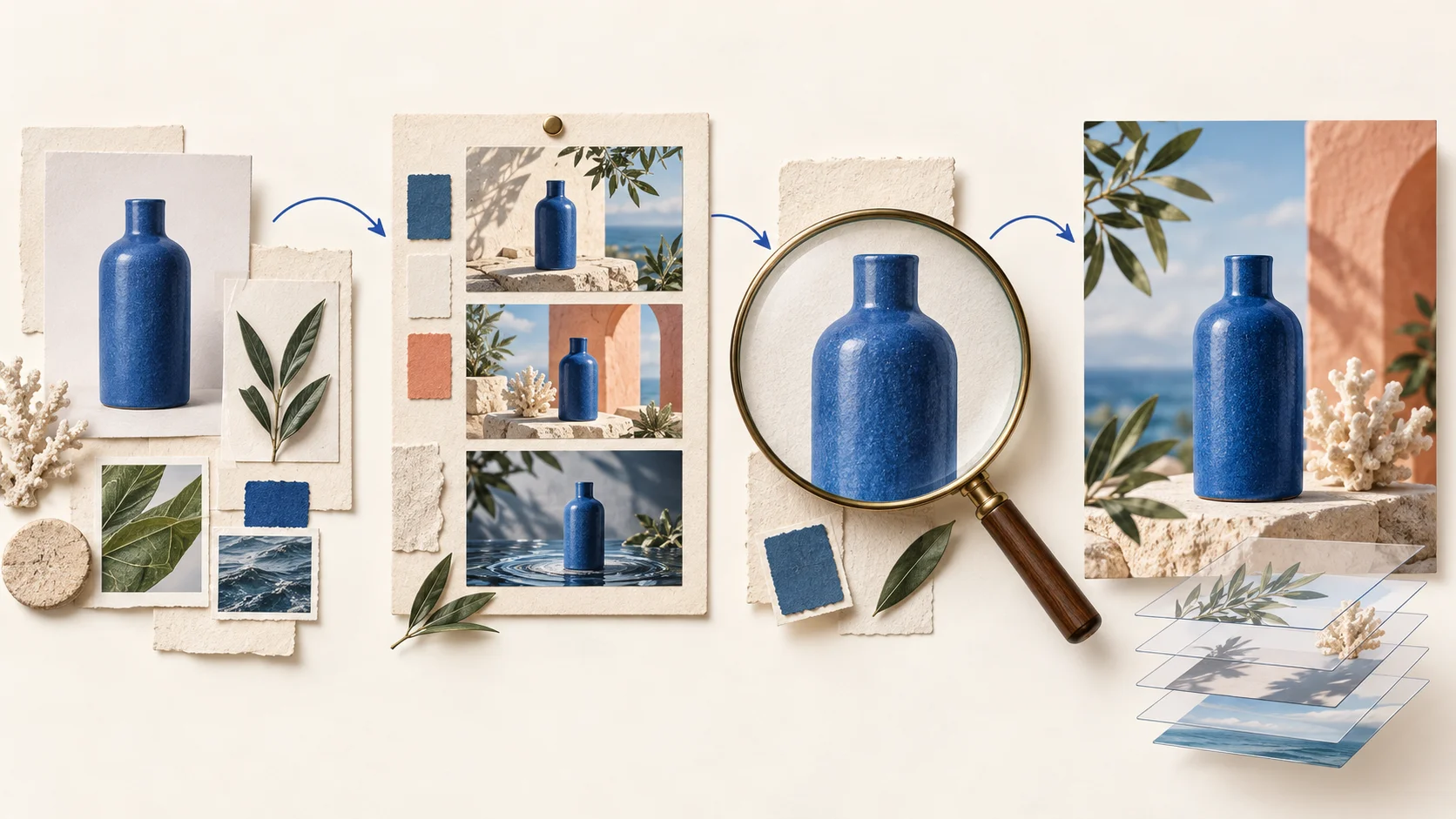
A workflow from references to an editable deliverable
Use this process to decide where generation helps and where direct editing will give you more control over the final image.
Step 1: Define what must stay unchanged
Start with the source photograph and the delivery brief. List the details that cannot drift: product proportions, packaging text, brand colors, and required empty space. Set the intended aspect ratio before exploring layouts. This gives you a concrete basis for rejecting a beautiful but unsuitable result.
Step 2: Explore one change at a time
In Whisk AI, choose the creation mode that matches your inputs and provide the relevant references or prompt. A starting instruction could be:
Place this blue ceramic bottle in a calm botanical setting with soft window light. Keep the product clearly visible and leave open space on the right for a headline. Do not add text.
Treat that instruction as a request, not a guarantee of preservation. Compare the result with your reference before changing another variable. Adjusting background, lighting, and style all at once makes it harder to understand why a result improved or deteriorated.
Step 3: Keep approved details under direct control
When you have a usable direction, decide which generated parts to retain. If the bottle has changed, keep the background and composite the original photograph instead. Put the headline, product, and background on separate layers in your finishing editor. Add exact brand text as editable type rather than depending on generated lettering.
Step 4: Save, reopen, and inspect the handoff
Keep an editable master and export a separate delivery image. Photoshop documents can preserve layers and settings in supported formats, while a separate flattened copy serves distribution. Adobe saving documentation
Before sending the files, reopen them. Check dimensions, transparency where needed, product details, and whether the next person can make the expected changes. A successful export is only part of a successful handoff.
Pricing: compare the job, not just the monthly fee
PhotoCraft is listed as free. Adobe's US page lists the individual Photoshop plan at US$22.99 per month, on an annual plan billed monthly, as checked on October 11, 2026. That billing commitment matters; it is not a cancel-anytime monthly quote. Offers, regions, and included AI access can differ. Adobe plan details
Whisk AI uses generation credits. Check the current account or purchase screen for the cost of your selected model, output settings, and number of images. This comparison does not quote a fixed free allowance or plan price because those details were not consistently available in the public page checked.
For your own comparison, record:
- Software or subscription spending for the period.
- Credits consumed by attempts, including discarded results.
- Time spent fixing details and preparing the final file.
- Whether a second editor is required to finish the job.
A useful measure is cost per accepted deliverable. Decide what “accepted” means before calculating it: a promising concept and a ready-to-publish advertisement are different outcomes. There is no measured cost winner in this article.
Which should you choose?
For social posts and visual concepts, start by considering Whisk AI. It is a good fit when reference-led exploration is the main task and the deliverable is an image. Check faces, hands, products, and text before using a result.
For client revisions and layered files, choose Photoshop. It fits work in which the next request may be a precise adjustment to one element. Keep your master document organized so that those revisions remain manageable.
For a free, open-source editing setup, evaluate PhotoCraft. Use a duplicate of a real project and complete the whole save-and-reopen cycle. Continue only if the operations your job needs work reliably in the version you are using.
For a product campaign with both exploration and exact finishing, combine tools. Whisk AI can help establish the direction; a layered editor can handle the approved composition. If you already work comfortably in Photoshop, its built-in generation may also let you stay in one application.
Frequently asked questions
Is ArtCraft the same as PhotoCraft?
No. PhotoCraft is one of ArtCraft's Crafting Apps. ArtCraft also offers an AI studio. Check which product a feature description refers to before comparing it with Photoshop or Whisk AI.
Can PhotoCraft replace Photoshop?
It may cover the editing tasks you need, but that should be established with your own files. Its early-stage status makes an end-to-end compatibility check more useful than a feature-count comparison.
Does Whisk AI replace Photoshop?
Whisk AI can serve image generation and remixing needs. For workflows that require independently editable layers, precise repeated changes, or an editable client master, plan to use a layered editor as well.
Is Whisk AI here Google's Whisk?
No. This article compares the service at whisk-ai.io. Do not transfer Google Whisk's pricing, access rules, or product terms to it based on the similar name.
Can I use Whisk AI images in another editor?
You can download a result and bring the image into an editor that supports its format. That transfers the image; it does not reconstruct separate editable objects, text, or layers from the generated scene.
The right starting point is the part of the work that is holding you up. Explore references when you need a direction, use layers when you need precise revisions, and evaluate a new editor with the files you actually intend to deliver. You can begin the reference-led part of that process in the Whisk AI workspace.